Varnish Cache is an HTTP accelerator. It sits in front of your web server, keeps copies of pages it has already served, and returns them straight from memory, so repeat visits do not have to go through PHP, Node or the database.
Getting here: Servers → select a server → Packages. Varnish is in the Caching category.
1. When to Use Varnish
- Many visitors request the same pages: blogs, marketing sites, documentation, product catalogues.
- You expect traffic spikes, such as a launch or a sale.
- You want to reduce load on PHP, Node or the database.
Varnish helps least with pages that are different for every logged-in user, such as dashboards, carts and account pages. These need rules so they are not cached, or one visitor could see another's page.
2. How Varnish Fits In
When Varnish is set up in front of a site, requests flow like this:
Visitor → Web server on 80/443 (NGINX or Apache, handles HTTPS) → Varnish → Web server on a backend port → ApplicationVarnish does not handle HTTPS itself. The web server terminates HTTPS first and passes the request to Varnish, which either answers from its cache or forwards it to the application.
3. Install Varnish
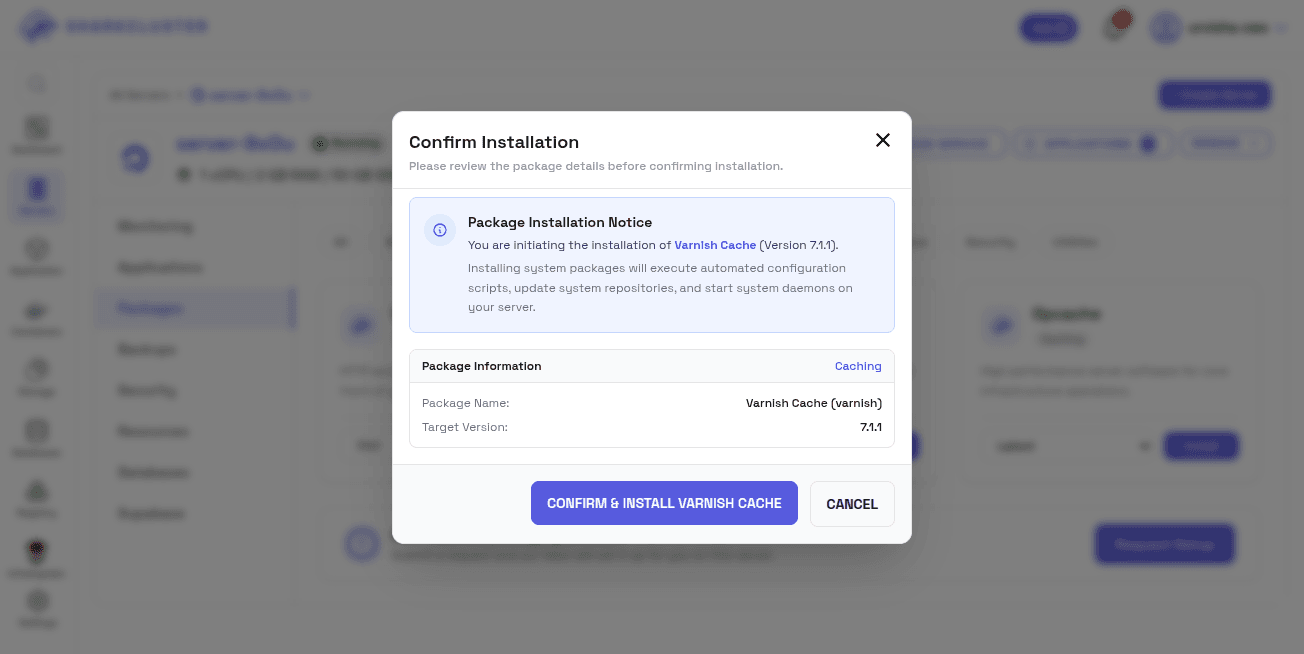
- 1Open Packages and select the Browse tab.
- 2Select the Caching filter, or search for
varnish. - 3Click Install on Varnish Cache and confirm.
- 4Wait for the success message. Varnish then appears on the Installed tab.
Varnish is installed from the Ubuntu package repositories, so you get the version that ships with the server's Ubuntu release, and it starts automatically when the server boots.
Putting Varnish in front of a site changes how every request reaches your application, so arrange it for a quiet period and take a snapshot first.
4. Manage Varnish
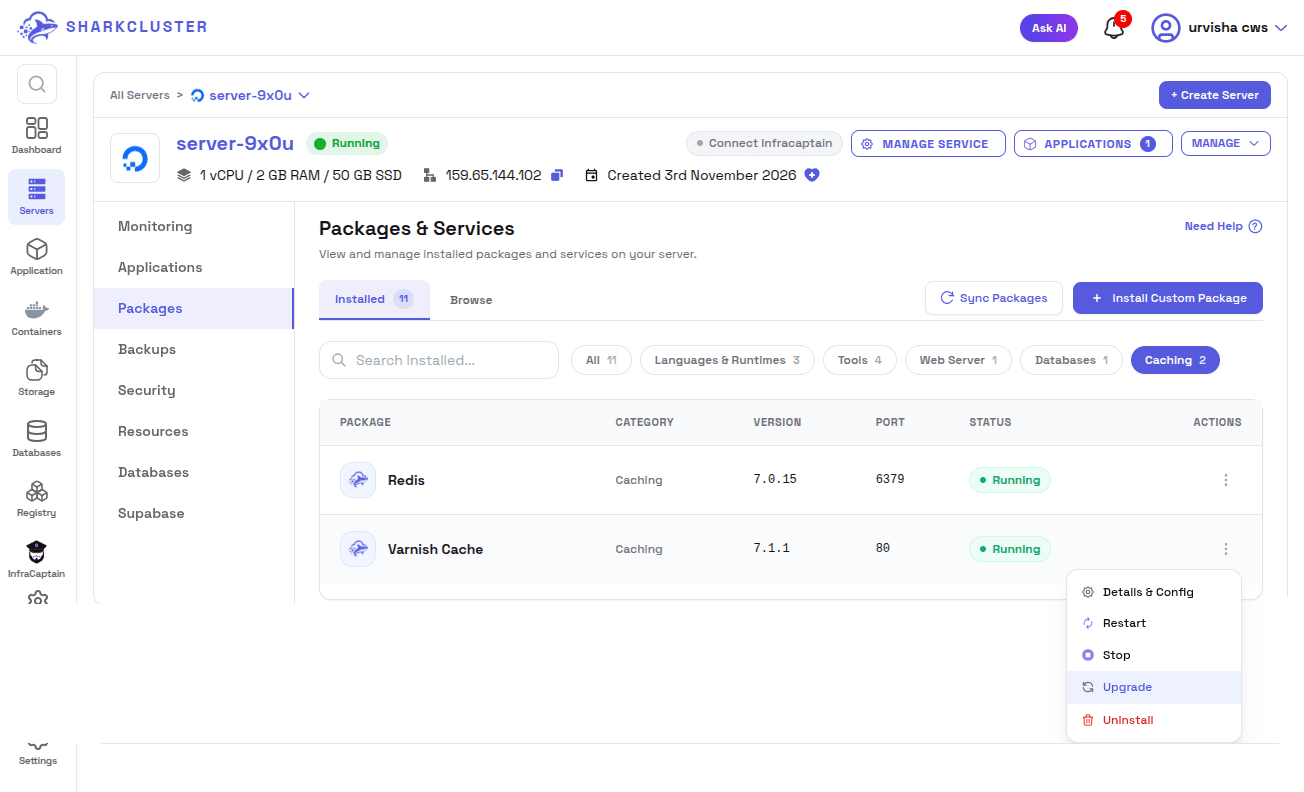
On the Installed tab, open the menu next to Varnish Cache:
| Action | What it does |
|---|---|
| Details & Config | Shows Varnish's ports, configuration path and logs. |
| Restart | Restarts Varnish. The cache is emptied, so the next requests go to your application until pages are cached again. |
| Stop / Start | Stops or starts the Varnish service. If your site is routed through Varnish, it is unavailable while Varnish is stopped. |
| Upgrade | Upgrades Varnish to another available version, where one is offered. |
| Uninstall | Removes Varnish, its configuration in /etc/varnish and its data in /var/lib/varnish. |
Before uninstalling or stopping Varnish on a site that is routed through it, ask support to point the web server back to the application directly, or the site will stop responding.
5. Details & Config
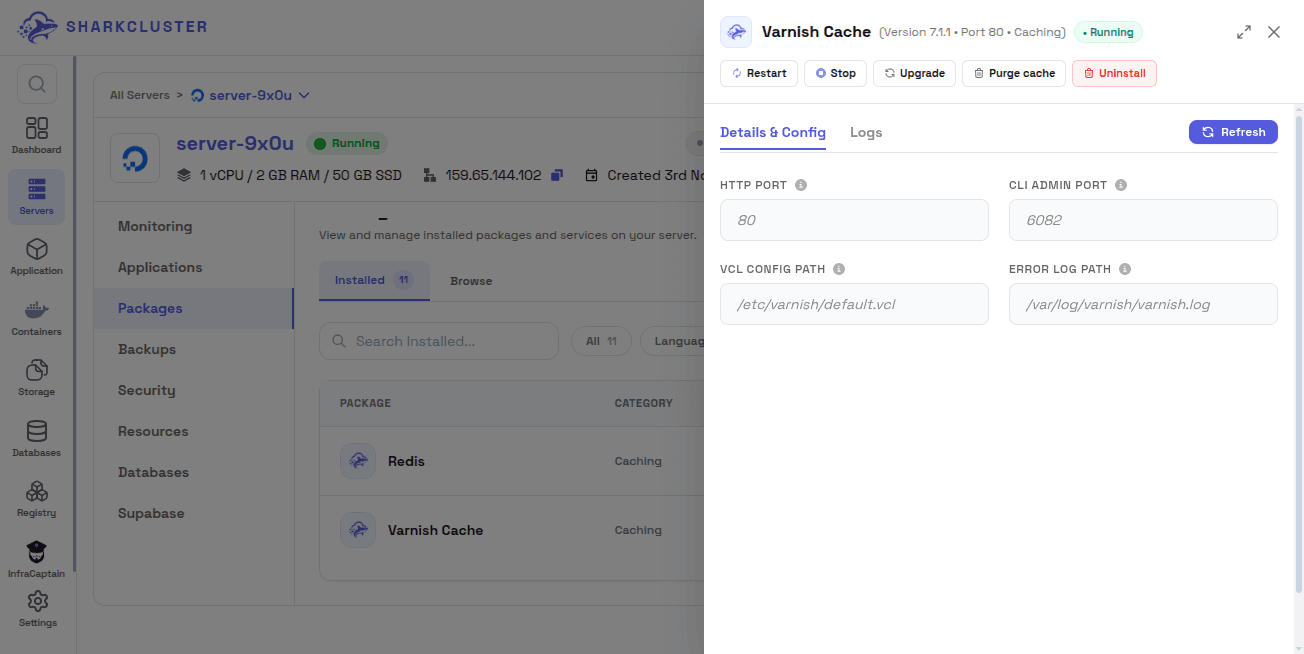
Details & Config shows these values. They are read-only in the panel:
| Setting | What it shows |
|---|---|
| HTTP Port | The port Varnish serves cached pages on. |
| CLI Admin Port | 6082, the local management port used by varnishadm. It only listens on the server itself. |
| VCL Config Path | /etc/varnish/default.vcl, the file that holds Varnish's caching rules. |
| Error Log Path | Where Varnish writes its log. |
Changing Caching Rules
Varnish's behaviour is controlled by VCL (Varnish Configuration Language) in /etc/varnish/default.vcl. VCL sets which backend to use, how long pages are cached (TTL), how long stale pages may be served while a fresh copy is fetched (grace), which cookies and paths bypass the cache, and who may purge it.
To change it, edit the file over SSH and reload Varnish with sudo systemctl reload varnish. Check the file first with sudo varnishd -C -f /etc/varnish/default.vcl: a VCL file that does not compile stops Varnish from starting, which can take the site down. Keep a copy of the last working file.
6. Clearing the Cache
After deploying changes, clear Varnish's cache or visitors keep seeing the old version until it expires. Open the web console from Security → Access and run:
sudo varnishadm "ban req.url ~ ."to clear every cached page.sudo varnishadm "ban req.url ~ ^/blog"to clear only pages whose address starts with/blog.
Restarting Varnish also empties the cache, but briefly interrupts traffic routed through it.
7. Logs
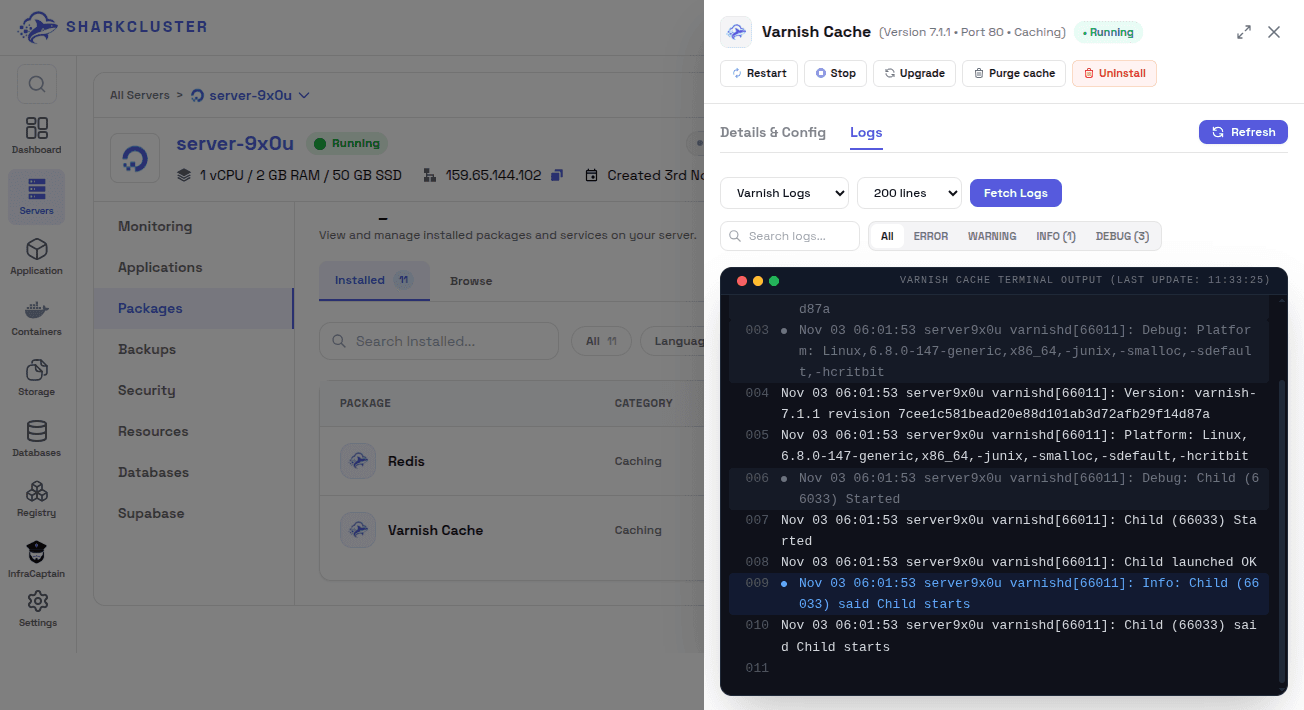
Open Details & Config → Logs and choose a source:
| Source | What it shows |
|---|---|
| Varnish Logs | Varnish's own log, including backend errors. |
| NCSA Logs | Requests served through Varnish, in the standard access-log format. |
| Systemd Logs | Service start, stop and crash messages, including VCL compile errors. |
Choose how many lines to show, click Fetch Logs, and use the filter box to find specific entries. When pages return errors, start with the Varnish log; when Varnish will not start, check the Systemd log.
8. Good Practice
- Fix slow pages first, then cache them. A cache can hide problems that return as soon as a page is not cached.
- Never cache logged-in pages unless you are sure the rules keep users' pages separate.
- Clear the cache on every deploy.
- Set a grace period in VCL so visitors see a slightly older page instead of an error if the application is slow or down.
- Start with a short TTL and raise it once you know which content can safely be a little out of date.
- Take a snapshot before installing, upgrading or changing VCL.
9. Troubleshooting
| Problem | What to check |
|---|---|
| Pages are not being cached | Your site may not be routed through Varnish yet; a fresh install does not change the web server. Use Request Setup or contact support. |
| 503 Backend fetch failed | Varnish cannot reach the application. Check the web server and application are running, and look at the Varnish log for backend errors. |
| Visitors see old content | The TTL is too long, or the cache was not cleared after deploying. Clear it with varnishadm. |
| Slow pages fail only through Varnish | The backend took longer than Varnish's first-byte timeout. Increase it in the VCL or fix the slow page. |
| Varnish will not start after a VCL change | The VCL did not compile. Check Systemd Logs, restore the last working file, and test with varnishd -C before reloading. |
| Users see each other's pages | Logged-in pages are being cached. Stop Varnish or restore the previous VCL immediately, then add rules to bypass the cache for those pages. |
Frequently asked questions
When should I use Varnish Cache?
Use Varnish when many visitors request the same pages, such as blogs, marketing sites or product catalogues, when you expect traffic spikes, or when you want to reduce load on PHP, Node or the database.
Why are my pages not being cached by Varnish?
A fresh Varnish install does not change the web server, so your site may not be routed through Varnish yet. Use Request Setup or contact support to put Varnish in front of the site.
How do I clear the Varnish cache after a deploy?
Open the web console from Security → Access and run sudo varnishadm "ban req.url ~ ." to clear every cached page, or a narrower pattern such as ^/blog to clear part of the site.
Does Varnish handle HTTPS?
No. The web server terminates HTTPS first and passes the request to Varnish, which answers from its cache or forwards it to the application.
Related guides
Something here not matching what you see in the panel?