An application's Overview page is where you get into the application: its SSH and SFTP logins, the web console, the database and its credentials, and access for teammates. It is the first page you see when you open an application.
Getting here: Servers → select a server → Applications → select an application → Overview.
1. Quick Actions
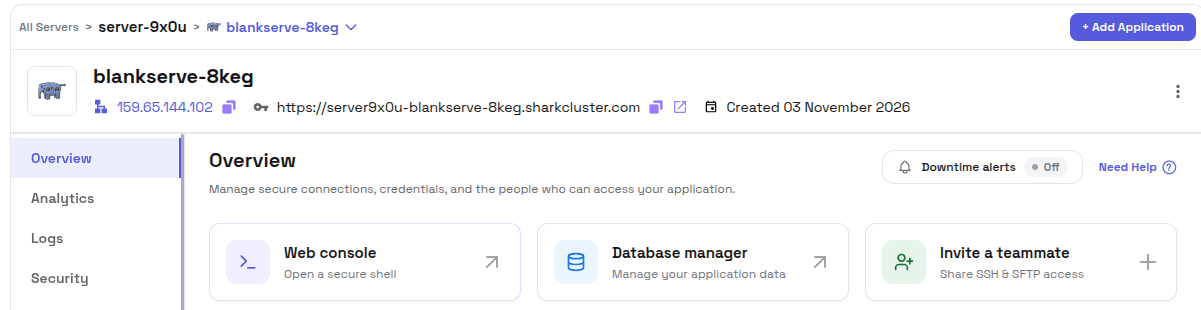
| Action | What it does |
|---|---|
| Web console | Opens a terminal in a new browser window, logged in as the application's master user. |
| Database manager | Opens phpMyAdmin (MySQL and MariaDB) or phpPgAdmin (PostgreSQL) for the application's database and signs you in automatically. For MongoDB it scrolls to the database credentials instead. |
| Invite a teammate | Adds an SSH and SFTP login for someone else (see section 7). |
Web Console Verification
The server owner can open the web console straight away. Anyone else, such as a team member, must enter a 6-digit code that is emailed to the server owner. The code expires after 5 minutes; use Resend OTP for a new one. Owners can also require the code for themselves under Profile → SSH Terminal Security.
2. Application Details
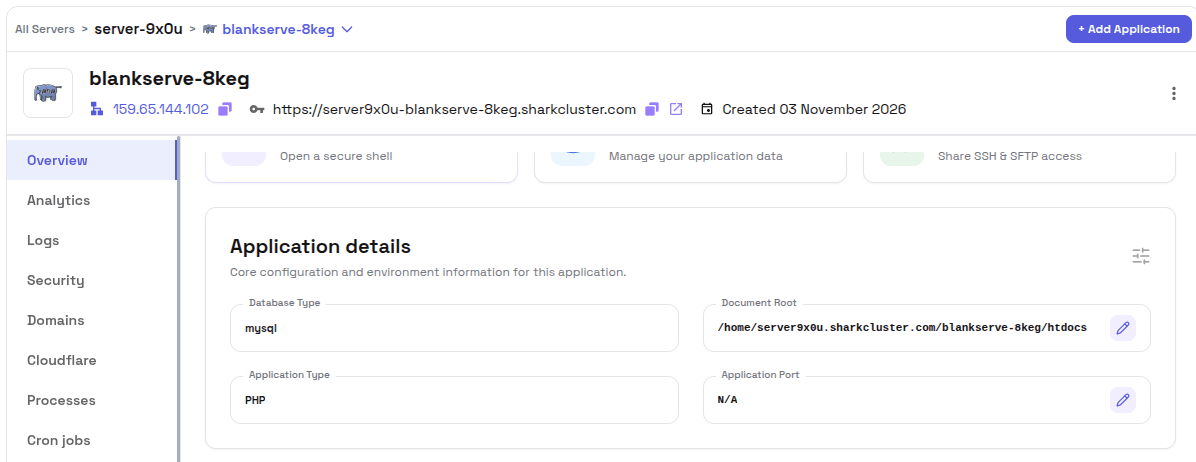
| Field | Meaning |
|---|---|
| Database Type | The database engine the application uses. |
| Document Root | The folder the web server serves the application from. Copy it when connecting with SSH or SFTP. |
| Application Type | The application's technology, such as Laravel or WordPress. |
| Application Port | The port the application process listens on, for Node, Python and similar applications. |
Changing the Application Port
Click Edit next to Application Port and enter a port from 1 to 65535. Saving updates the web server configuration and restarts the application process (PM2 or systemd) on the new port.
Changing the Document Root
Click Edit Document Root to change the folder the application is served from, for example to point a Laravel application at its public folder. Tick I understand the risks and take full responsibility for this change, then save.
3. Application URLs
Shows the addresses the application is reached on, each with a copy button: the main application URL and, where the application has them, the Backend API URL and Admin panel URL. To change the domain, use the application's Domains page.
4. Master User Details
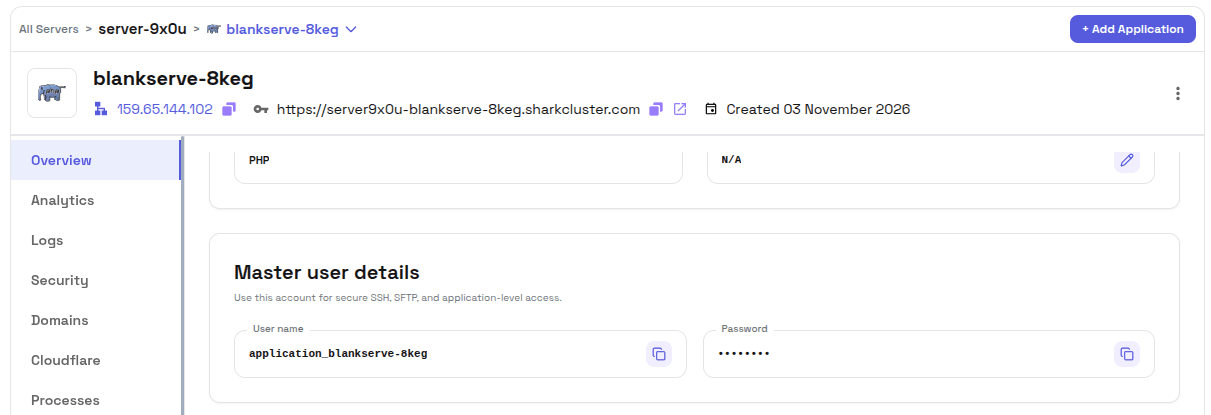
The master user is the main SSH and SFTP login for the application's files. It shows a User name and Password with copy buttons.
- SSH:
ssh USERNAME@SERVER_IP, then enter the password. - SFTP: connect to the server IP on port 22 with the same details, for example in FileZilla or WinSCP. The application's files are in its Document Root.
Treat these as administrator access to the application. Do not share them; give each teammate their own login instead.
5. Database
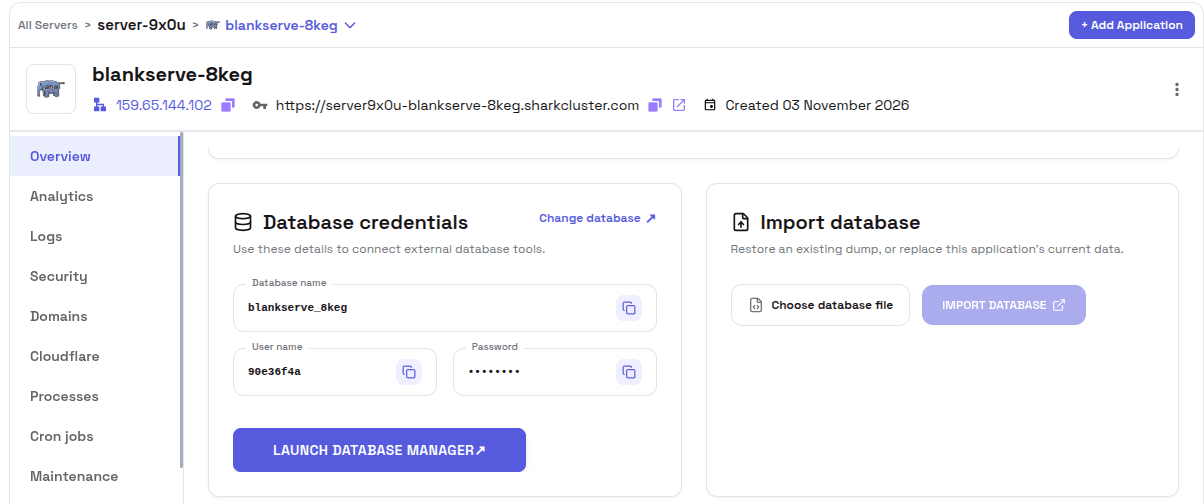
Database Credentials
Shows the database name, user name and password, with copy buttons, for connecting external tools. For MongoDB, connect with MongoDB Compass using the SSH tunnel details shown.
Change Database
Click Change database to connect the application to a different database:
- Choose Existing Database: pick a database on the server and click Attach Database.
- Add New Database: create a new database and connect it.
Confirm the swap in Confirm Database Swap, which shows the current and new database. The application's live connection changes immediately, so check the new database has the tables your application expects.
Import Database
Under Import database, choose a .zip or .gz database dump and import it. Large dumps can take a few minutes.
6. Folder Permissions

Manage permissions fixes file and folder permission problems without SSH:
- Basic: enter a Folder (for example
storageorbootstrap/cache; leave blank for the application's root folder), a Permission such as755or775, and choose whether to apply it to everything inside the folder. - Advanced: run a custom permissions command script.
Use the narrowest permission that works. Do not use 777 to work around ownership problems; it lets anything on the server change your files.
7. Additional SSH and SFTP Users
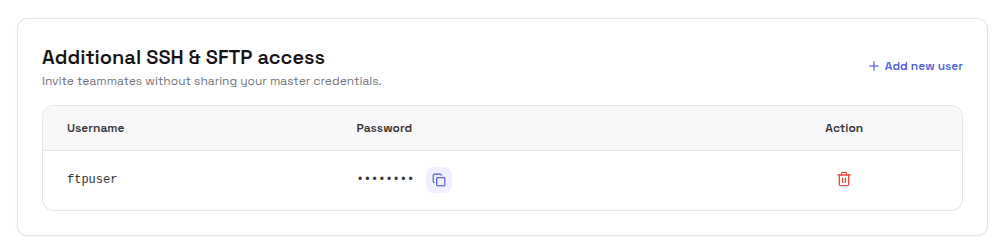
Additional SSH & SFTP access lets you invite teammates without sharing the master user. Click Add new user (or Invite a teammate) and choose how they log in:
- Username & Password: enter a username and password.
- Username & SSH Key: enter a username and choose an SSH key: a Server Key you have already saved, Generate New Key (download the private key and give it to the teammate), or Add Public Key (paste the teammate's own public key).
Each user appears in the list, where you can copy the password, edit the user or delete them. Deleting a user removes their access straight away, without changing the master user's password.
8. AI Agent Details
Applications created as AI agents show extra sections:
- OpenClaw: the OpenClaw Gateway Token, with the gateway URL and auth token for connecting devices.
- Claude Code: Open Web Terminal to use Claude Code in the browser, plus the web terminal login, workspace folder and launch command for SSH.
9. Downtime Alerts
Downtime alerts shows whether uptime monitoring is on for the application, and opens its settings. Set it up once the application has a working domain.
10. Access Safely
- Give every person their own SSH and SFTP login, and delete it as soon as they no longer need access.
- Prefer SSH keys to passwords for teammates.
- Use the web console for quick checks, and your own SSH or SFTP client for longer work.
- Copy credentials with the copy buttons rather than sharing screenshots or chat messages.
- Back up before importing a dump or changing the database.
11. Common Problems
| Problem | What to check |
|---|---|
| Application credentials are not available | The application's master user has not been set up yet. Wait for installation to finish, or contact support. |
| Web console asks for a code | You are not the server owner. Ask the owner for the code sent to their email. |
| Database manager does not open | Check the application has a database. MongoDB has no web manager; use the credentials with MongoDB Compass. |
| Port must be between 1 and 65535 | Enter a whole number in that range. |
| Application stopped loading after a change | Check the document root and application port, and put back the previous values if needed. |
| A teammate cannot connect | Check their user exists in the list, they are using the right username and password or key, and the server is running. |
| Permission errors remain after a change | Check the folder and whether the change was applied recursively. Ownership problems need support rather than wider permissions. |
Frequently asked questions
How do I give a teammate SSH or SFTP access to one application?
Use Additional SSH & SFTP access on the application's Overview page and click Add new user. Give each person their own login with a password or SSH key, and delete it when they no longer need access.
How do I import a database into my application?
Under Import database on the Overview page, choose a .zip or .gz dump and import it. Take a backup first, because importing replaces the data the application uses.
Why does the web console ask me for a code?
Anyone other than the server owner must enter a 6-digit code emailed to the server owner. The code expires after 5 minutes; use Resend OTP to get a new one.
Where do I find an application's SSH and SFTP login?
Open the application's Overview page. Master User Details shows the user name and password, and you connect over SSH or SFTP to the server IP on port 22, where the files are in the application's Document Root.
Related guides
- ApplicationsLogsReading application, web server and service logs from the panel without opening an SSH session.
- ApplicationsSecurityApplication-level security settings, what each one protects against, and the ones worth turning on before you go live.
- ApplicationsDomains & SSLAdding a domain, DNS verification, automatic SSL, Cloudflare, virtual host configuration, and what the panel writes on the server for each.
- ApplicationsCloudflarePut a domain behind Cloudflare with SharkCluster: the DNS records it needs, how activation works, and every tab of the Cloudflare dashboard, from security rules and caching to redirects, Origin Protection and alerts.
Something here not matching what you see in the panel?