Redis is an in-memory data store. Applications use it as a fast cache, to store sessions, and as a queue for background jobs. On SharkCluster, Redis is installed and managed from the server's Packages page.
Getting here: Servers → select a server → Packages. The same Packages screen is also available from an application's own pages.
1. When to Use Redis
- Application cache: store the results of slow database queries or API calls, for example Laravel's
CACHE_DRIVER=redisor a WordPress object cache plugin. - Sessions: keep user sessions in memory instead of on disk or in the database.
- Queues: run background jobs, such as Laravel queues or Magento message queues.
- Rate limiting and counters: fast increments and expiring keys.
Redis keeps its data in memory, so it is fast but limited by the server's RAM. Do not use it as the only copy of data you cannot afford to lose.
2. Install Redis
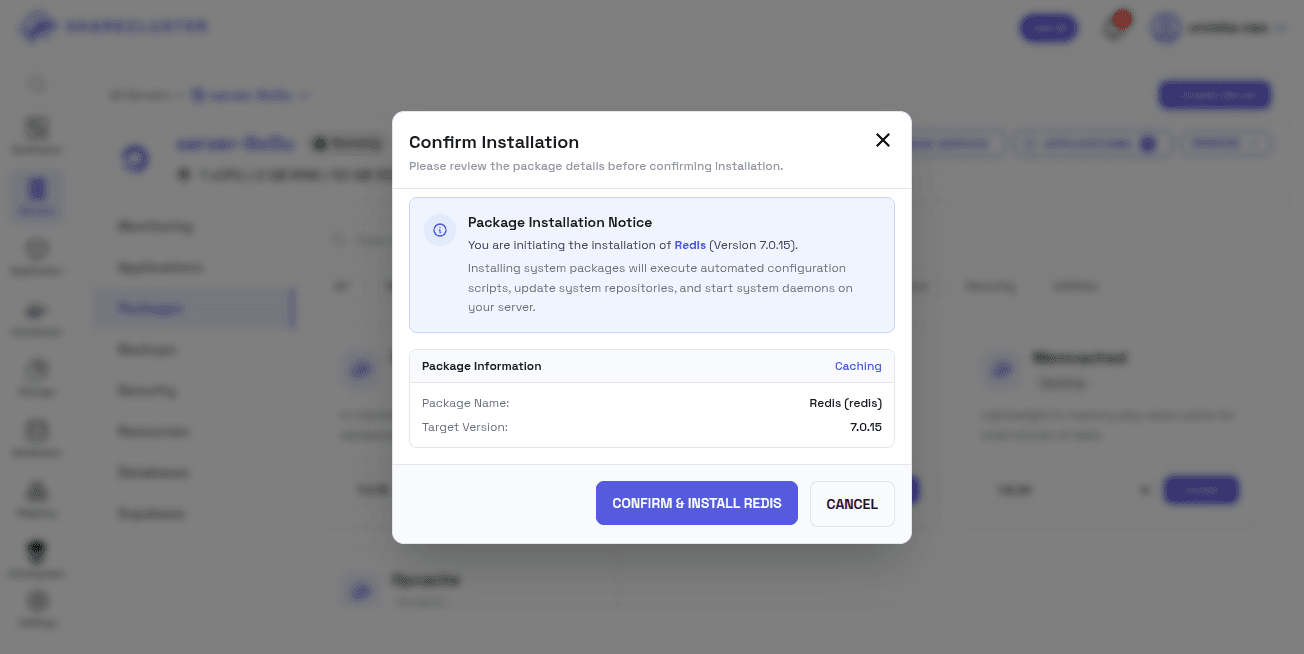
- 1Open Packages and select the Browse tab.
- 2Find Redis in the Caching category, or search for
redis. - 3Click Install and confirm.
- 4Wait for the success message. Redis then appears on the Installed tab with status, version and port.
Redis is installed from the Ubuntu package repositories (redis-server), so you get the version that ships with the server's Ubuntu release. It is enabled to start automatically when the server boots.
After installation, Redis listens on port 6379 on the server itself (127.0.0.1). Applications on the same server can connect straight away; it is not reachable from the internet.
3. Connect an Application
Point your application at Redis on the same server:
| Setting | Value |
|---|---|
| Host | 127.0.0.1 |
| Port | 6379 |
| Password | None by default |
For example, in a Laravel .env file:
REDIS_HOST=127.0.0.1REDIS_PORT=6379CACHE_DRIVER=redis,SESSION_DRIVER=redisandQUEUE_CONNECTION=redisto use it for caching, sessions and queues.
To check Redis is running, open the web console from Security → Access and run redis-cli ping. It replies PONG when Redis is working.
4. Manage Redis
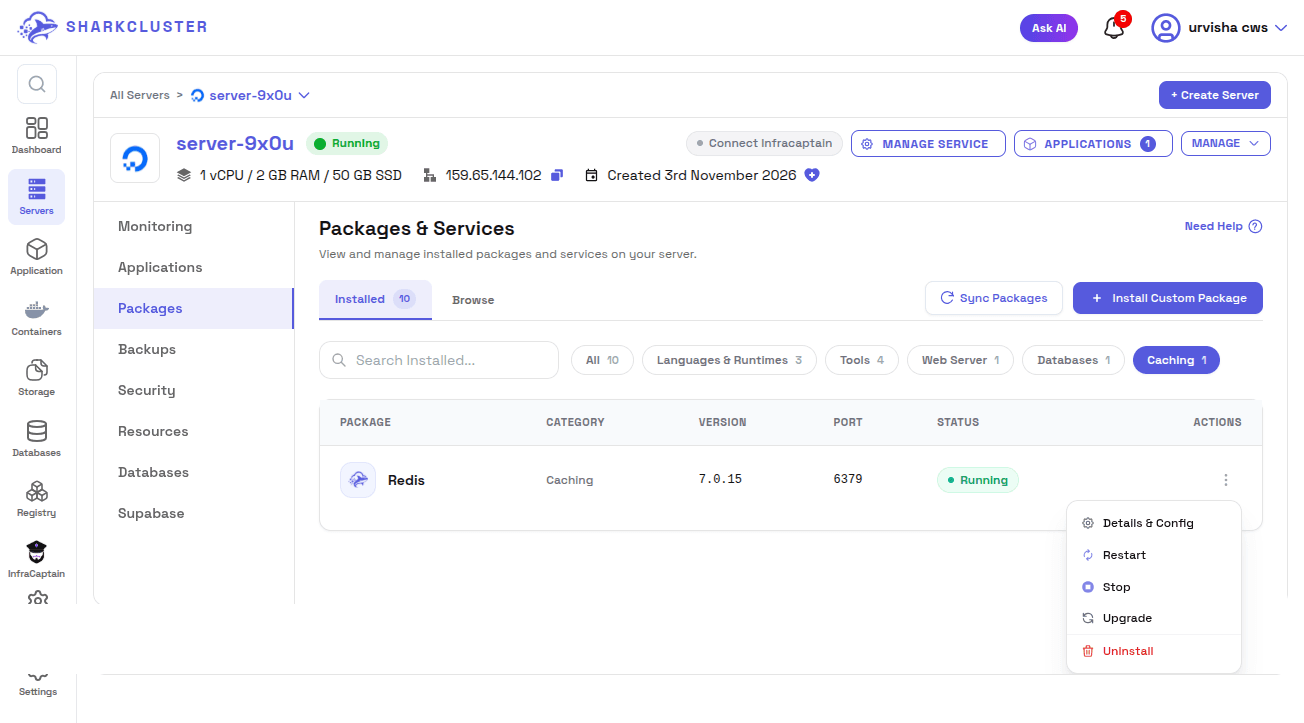
On the Installed tab, open the menu next to Redis:
| Action | What it does |
|---|---|
| Details & Config | Shows Redis's settings and logs, and lets you change the editable settings. |
| Restart | Restarts the Redis service. Connected applications briefly lose their connection. |
| Stop / Start | Stops or starts the Redis service. Applications that use Redis for cache, sessions or queues fail while it is stopped. |
| Upgrade | Upgrades Redis to another available version, where one is offered. |
| Uninstall | Removes Redis from the server. |
5. Redis Settings
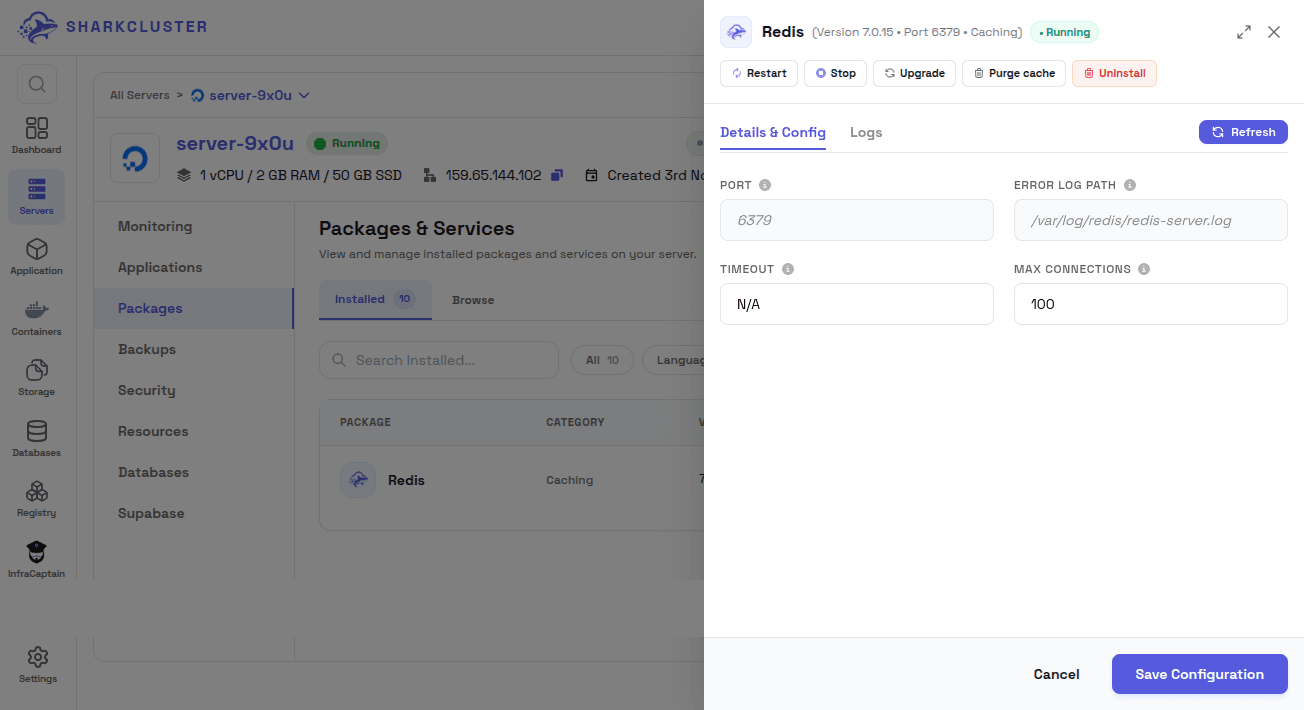
Details & Config shows these settings:
| Setting | Editable | What it controls |
|---|---|---|
| Port | No | The port Redis listens on (default 6379). |
| Timeout | Yes | Closes a client connection after it has been idle for this many seconds. 0 disables the timeout. |
| Max Connections | Yes | The maximum number of clients connected at the same time (default 10000). |
| Error Log Path | No | Where Redis writes its log, usually /var/log/redis/redis-server.log. |
Saving writes the new values to /etc/redis/redis.conf and restarts Redis, so connected applications reconnect. If the settings are saved but could not be applied on the server, a warning message tells you.
Other Redis settings, such as a memory limit (maxmemory), eviction policy (maxmemory-policy) or a password (requirepass), are not in the panel. To change them, edit /etc/redis/redis.conf over SSH and run sudo systemctl restart redis-server.
6. Logs
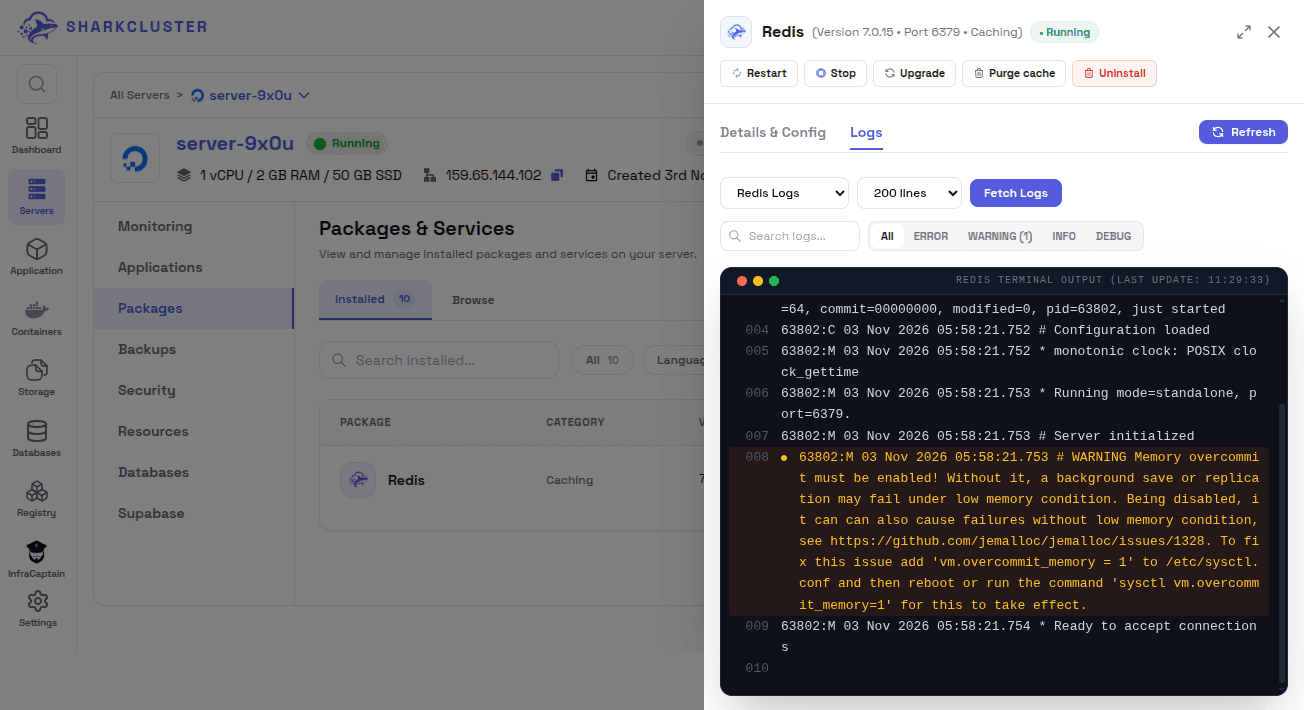
Open Details & Config → Logs and choose a source:
- Redis Logs: Redis's own log file.
- Systemd Logs: service start, stop and crash messages.
Choose how many lines to show, click Fetch Logs, and use the filter box to find specific entries. Check the logs before restarting Redis repeatedly: they usually say why it stopped.
7. Good Practice
- Keep Redis private. Leave it listening on
127.0.0.1and do not open port 6379 in the firewall. - If you must allow remote access, set a password with
requirepassinredis.confand only allow trusted IP addresses through Security → Firewall. - Set a memory limit with
maxmemoryand an eviction policy such asallkeys-lruwhen using Redis as a cache, so it cannot use all the server's RAM. - Watch memory on the Monitoring page after enabling Redis caching.
- Do not treat Redis as permanent storage. Keep important data in your database and use Redis to speed it up.
8. Common Problems
| Problem | What to check |
|---|---|
| Application cannot connect | Check Redis shows as running on the Installed tab, and that the application uses host 127.0.0.1 and port 6379. Run redis-cli ping in the web console. |
| Redis keeps stopping | Open Systemd Logs and Redis Logs. A common cause is the server running out of memory; set maxmemory or upgrade the server. |
| Server memory is high | Redis may be holding too much data. Set maxmemory with an eviction policy, or upgrade the plan from Resources. |
| Too many connections errors | Raise Max Connections, or check the application is reusing connections. |
| Idle connections are being dropped | Set Timeout to 0 or a higher value. |
| Settings saved but did not take effect | A warning appears if the change could not be applied. Check the logs, then save again or restart Redis. |
| Stale data after a deployment | Clear the application's cache from the application itself (for example php artisan cache:clear), or run redis-cli FLUSHALL in the web console to clear everything in Redis. |
Frequently asked questions
What host and port does my application use to connect to Redis?
Applications on the same server connect to Redis at host 127.0.0.1 on port 6379. Keep it on 127.0.0.1 and do not open port 6379 in the firewall.
Why does Redis keep stopping?
A common cause is the server running out of memory. Check the Systemd Logs and Redis Logs under Details & Config, then set maxmemory or upgrade the server.
How do I set a memory limit or password for Redis?
maxmemory, the eviction policy and requirepass are not in the panel. Edit /etc/redis/redis.conf over SSH and run sudo systemctl restart redis-server; Timeout and Max Connections can be changed in Details & Config.
How do I install Redis on a SharkCluster server?
Go to Servers, select the server, open Packages and the Browse tab, find Redis in the Caching category, and click Install. It is then managed from the Installed tab.
Related guides
- Server softwareServer softwareThe supporting software catalogue — search engines, queues and brokers, mail, security tooling and developer utilities — and what installing each one does to the server.
- CachingMemcachedLightweight in-memory key-value cache for small chunks of data.
- CachingOpcachePHP opcode cache that stores compiled scripts in memory.
Something here not matching what you see in the panel?