The Processes page controls the background processes behind your application: Node.js and Python processes run by PM2, and your own workers or queue consumers run as systemd services. From here you can restart a crashed process, read its logs, start a new process, or create a background service without using the terminal.
Getting here: Servers → select a server → Applications → select an application → Processes.
1. The Two Tabs
| Tab | What it manages | When it appears |
|---|---|---|
| PM2 | Node.js and Python processes kept running by PM2, with their status, CPU, memory, restarts and logs. | When PM2 is installed on the server, or for a Custom Migration application with a non-PHP backend (Node.js, Django, Flask). |
| Custom Services | Your own systemd services: background workers, queue processors and other long-running scripts. | Always. |
When PM2 is available, the PM2 tab opens first and its processes load automatically. Otherwise only Custom Services is shown.
2. PM2 Tab
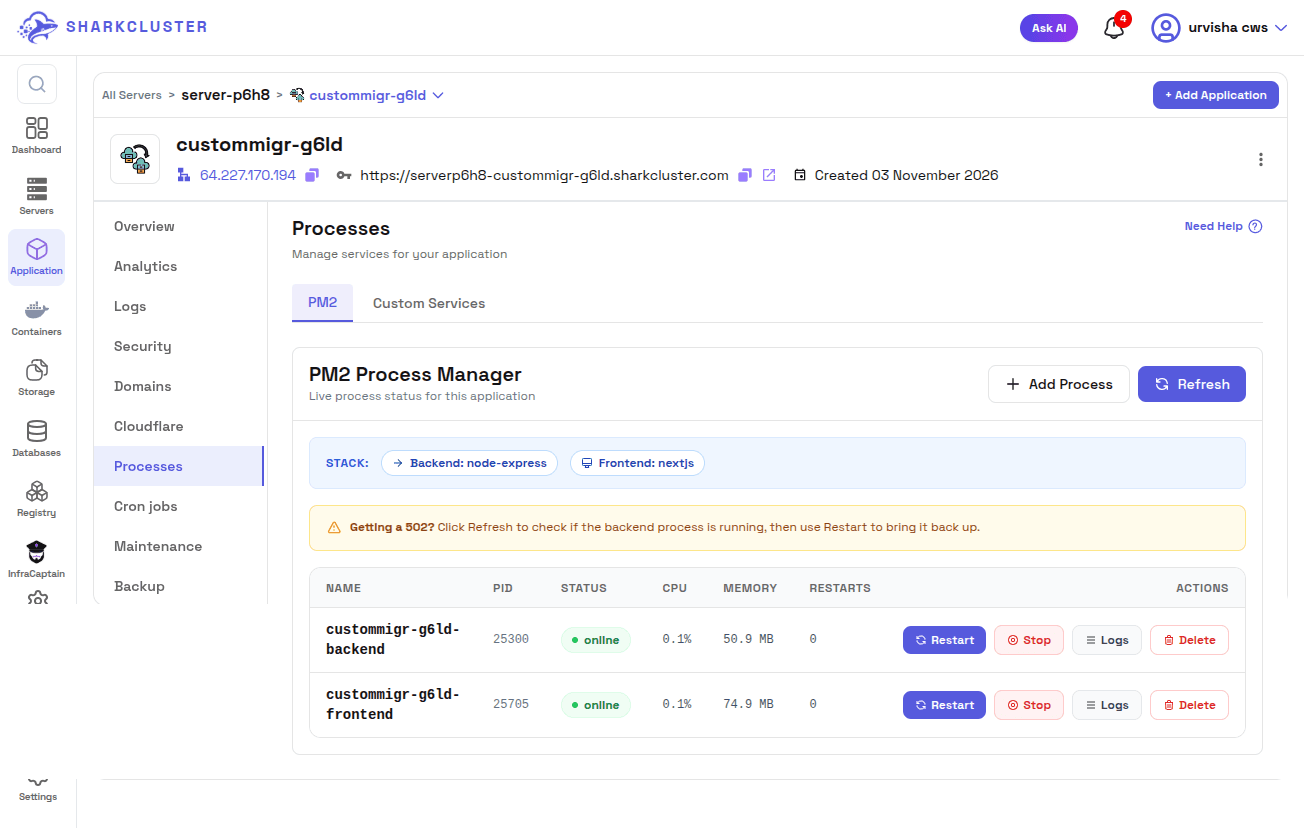
PM2 keeps your application's backend process running, restarts it if it crashes, and tracks how much CPU and memory it uses.
Header Buttons
- Add Process: opens a form to start a new process with PM2 (see below).
- Refresh: loads the current process list. The list does not update on its own, so click Refresh after making changes.
Process List
| Column | What it shows |
|---|---|
| Name | The PM2 process name. Only processes whose names start with the application name are shown. |
| PID | The process ID, or a dash when stopped. |
| Status | online (green, running), stopped (grey) or errored (red, crashed or exited). |
| CPU / Memory | Current CPU and memory use. |
| Restarts | How many times PM2 has restarted the process. |
Row Actions
| Action | What it does |
|---|---|
| Restart | Restarts the process. The list refreshes when it is done. |
| Stop | Stops the process. Not available when it is already stopped. |
| Logs | Shows the last 100 lines of the process's output (pm2 logs <name> --lines 100 --nostream) below the row, with a refresh button. |
| Delete | Stops the process and removes it from PM2, after you confirm. This cannot be undone. |
Adding a PM2 Process
Use Add Process when your backend starts from a different file, for example server.js instead of the default app.js.
| Field | Details |
|---|---|
| Process name | Must start with the application name, such as myapp-backend, so it appears in this list. It is pre-filled with the application name. |
| Location | The folder inside the application's root that contains the file, such as backend. |
| Command | The file PM2 should run, such as server.js or app.py. |
Click Start Process. It shows Starting... while the process starts, and the list refreshes when it is done. Cancel closes the form.
Python Applications
For Python applications (and Custom Migration applications with a Django or Flask backend), a Python Virtual Environment panel shows the Python Version, Venv Path, Activate Command and Pip Path, so you can work in the right environment over SSH.
A Getting a 502? banner reminds you: click Refresh to check whether the backend process is running, then use Restart to bring it back up. A 502 Bad Gateway on a Node.js or Python application almost always means its PM2 process has stopped.
Custom Migration applications also show a Stack strip with the backend and frontend technology and whether a Python virtual environment is used.
3. Custom Services Tab
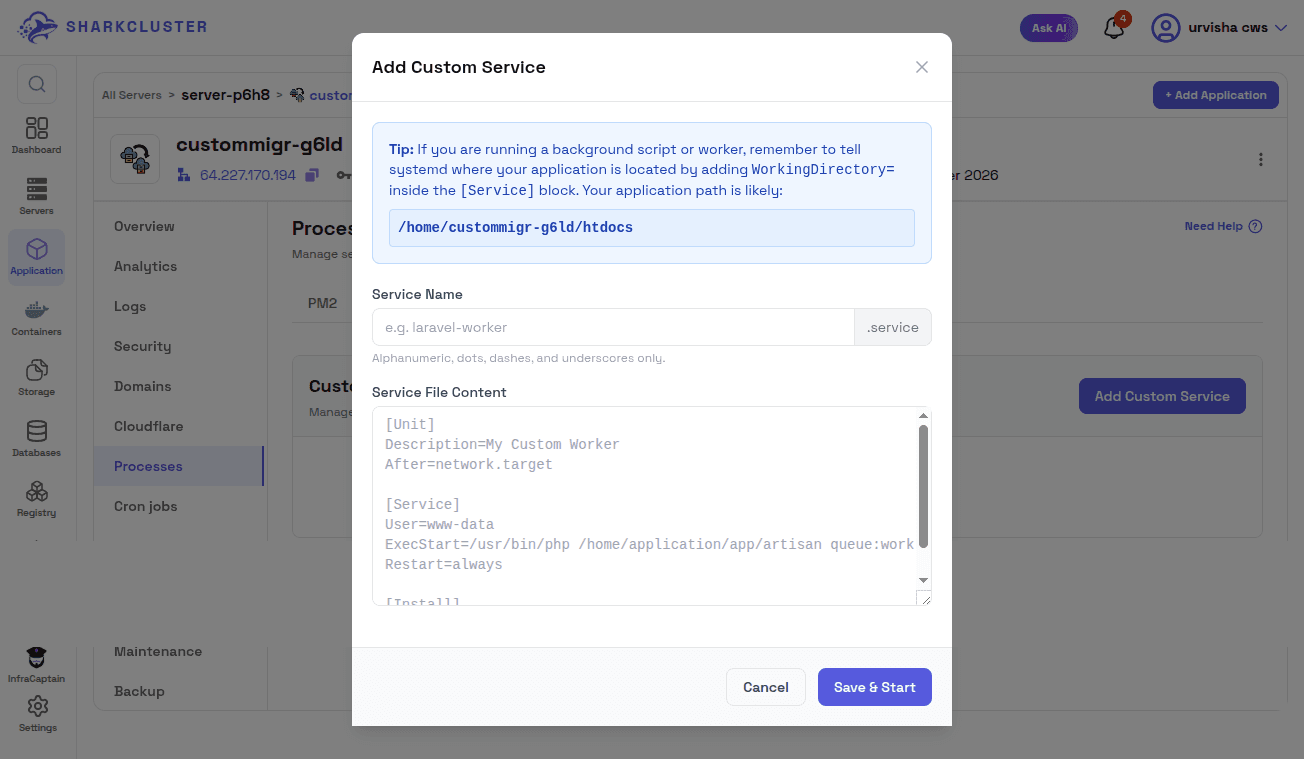
Custom Services run your own processes as systemd services. Use them for Laravel queue workers, Python scripts, Node daemons or anything else that should keep running, start when the server boots and restart if it fails.
Adding a Service
- 1Click Add Custom Service.
- 2Enter a Service Name, using letters, numbers, dots, dashes and underscores only.
.serviceis added automatically, solaravel-workerbecomeslaravel-worker.service. The name cannot be changed later. - 3Enter the Service File Content: the full systemd unit with
[Unit],[Service]and[Install]sections. The form shows your application's path to use forWorkingDirectory=. - 4Click Save & Start.
For example, a Laravel queue worker:
[Unit]
Description=My Custom Worker
After=network.target

[Service]
User=www-data
WorkingDirectory=/path/to/your/app
ExecStart=/usr/bin/php artisan queue:work
Restart=always

[Install]
WantedBy=multi-user.target
The service is written to the server, enabled and started. A couple of seconds later its real status is checked: the card shows Active if it is running, or Failed with an error message if it stopped straight away.
Service Cards
| Status | Meaning |
|---|---|
| Active (green) | The service is running. |
| Inactive (grey) | The service is stopped. |
| Failed (red) | The service crashed or could not start. Check its logs. |
| Action | What it does |
|---|---|
| Start / Stop | Starts a stopped or failed service, or stops a running one. The real status is checked afterwards. |
| Restart | Restarts the service, for example after deploying new code. |
| Edit | Opens the service's current unit file. Save & Start rewrites it and restarts the service. |
| Delete | Stops the service, stops it starting on boot and removes it, after you confirm. This cannot be undone. |
System Log
Each card has a System Log section that reads the service's journal (journalctl -u <name>.service):
- From and To: optionally limit the logs to a time window. Clear resets them.
- Get Logs: loads the logs. The panel shows the exact command used and the number of lines, with a refresh button.
- Hide Logs: collapses the panel.
When you first open the Custom Services tab, the live status of every service is loaded from the server, so the badges reflect what is actually running.
4. Practical Tips
- Getting a 502? Open the PM2 tab, click Refresh, and restart the backend process if it is stopped or errored.
- Restart after deploying code. PM2 processes and custom services keep running the old code until they are restarted.
- Always set `WorkingDirectory=` in a custom service, or relative paths in your command will fail.
- A service fails straight after creation? Click Get Logs: the usual causes are a wrong path, a missing file or a missing dependency.
- Use From and To for busy workers to find the log entries around the time of a problem.
5. Common Problems
| Problem | What to check |
|---|---|
| The PM2 tab is missing | PM2 is not installed on the server. Install it from the server's Packages page, or use Custom Services. |
| No PM2 processes found on this server | The application's process has not started or was removed. Use Add Process with the correct entry file. |
| A PM2 process is always errored | The application crashes on startup. Click Logs to read the error. |
| A process does not appear after adding it | Its name must start with the application name. |
| A custom service shows Failed after Save & Start | The process exited straight away. Click Get Logs to find the error. |
| Get Logs shows nothing | The service has not written anything yet. Wait a few seconds and try again. |
| The service name cannot be edited | Names are fixed after creation. Delete the service and create it again with the new name. |
6. Related Pages
| Where | What it covers |
|---|---|
| Processes (this page) | PM2 processes and custom systemd services for this application. |
| Logs | Web server and PHP-FPM logs, when a domain returns errors. |
| Cron jobs | Tasks that run on a schedule rather than continuously. |
| Server Packages | Server-wide services such as NGINX, MySQL and Redis, which affect every application. |
| Downtime alerts on Overview | Alerts when the application stops responding; this page is where you restart it. |
Frequently asked questions
How do I run a Laravel queue worker on SharkCluster?
Add it as a custom systemd service on the Processes page: click Add Custom Service, enter a name and the full unit file, and set WorkingDirectory= to the application's path. The service starts on boot and restarts if it fails.
Do I need to restart processes after deploying code?
Yes. PM2 processes and custom services keep running the old code until they are restarted.
Why doesn't my process appear in the PM2 list?
Only processes whose names start with the application name are shown. Use Add Process with a name such as myapp-backend and the correct entry file.
What does a 502 Bad Gateway mean on a Node.js or Python application?
It almost always means the application's PM2 process has stopped. Open the Processes page, click Refresh on the PM2 tab, and restart the process if it is stopped or errored.
Related guides
- ApplicationsCreating an applicationDeploy an application onto an existing server with its database created and wired in, and what each choice on the create form commits you to.
- ApplicationsAccessSFTP and SSH credentials for a single application, how they are scoped to its directory, and how to rotate them.
- ApplicationsAnalyticsTraffic, PHP performance, database activity and disk usage for one application, in one place.
- ApplicationsLogsReading application, web server and service logs from the panel without opening an SSH session.
Something here not matching what you see in the panel?