The Staging tab lets you create an exact copy of your application in a safe, isolated environment where you can test updates, new features, or configuration changes before they reach your live production site. Each staging application gets its own files and its own dedicated database, completely separate from production. You manage every staging environment for this application from this single tab.
Getting here: Servers → select a server → Applications → select an application → Staging.
1. How staging works
When you launch a staging application, the system duplicates the current application's files and creates a new isolated database on the target server. The staging application is deployed as a fully independent application with its own URL — it does not share files or a database with production. Changes made in staging do not affect production until you deliberately sync them.
| Production application | Staging application | |
|---|---|---|
| Files | Live, serving real traffic | Isolated copy — changes are safe to make |
| Database | Live production data | Separate database — no risk to real data |
| URL | Your main domain | Dedicated staging URL or subdomain |
| Traffic | Real visitors | Internal / team access only |
2. Page layout
The page has a search bar and a Launch button at the top, followed by a table that lists all staging applications currently associated with this production application. Modals open on top for launching, monitoring progress, and destroying staging environments.
3. Staging applications table
| Column | What it shows |
|---|---|
| Application Name | The staging application's name — by default the production app name with a -staging suffix (e.g. myapp-staging). Bold monospace text. |
| Staging URL / Domain | The URL where the staging application is accessible. Shown as a clickable link that opens in a new tab. Displays N/A if no URL has been assigned yet. |
| Status | Two states: Active (green pill — staging is fully set up and running), Creating (N%) (amber animated pill — staging creation is in progress, showing the percentage complete). Clicking the amber pill opens a progress modal. |
| Actions | Destroy button — initiates the OTP-verified permanent deletion of this staging application. |
When no staging applications exist, the table shows: "No staging applications launched yet. Click '+ Launch New Staging' to create one." When a search filter is active but no results match, it shows: "No staging applications match your search criteria."
4. Search
The search field in the top-left filters the staging table in real time. It matches against the application name and the staging URL simultaneously, case-insensitive. Clear the field to return to the full list.
5. Launching a staging application
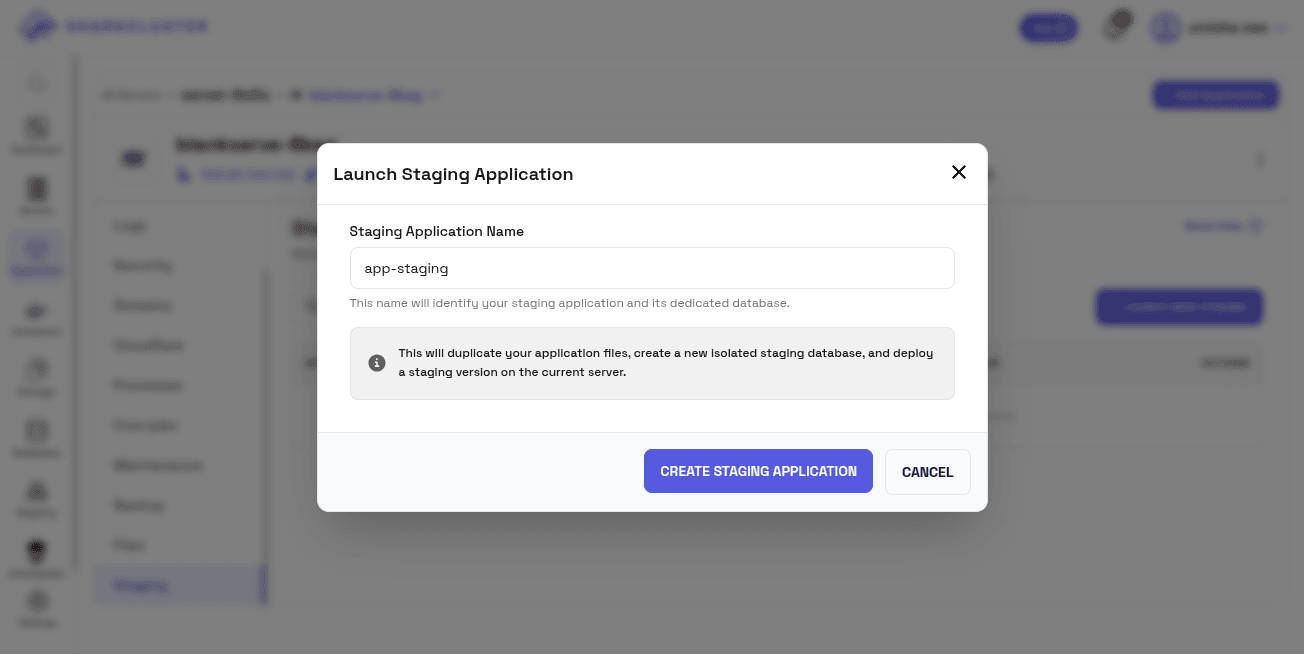
Click + Launch New Staging to open the Launch Staging Application modal.
Launch Staging Application modal
| Field | Details |
|---|---|
| Staging Application Name | Pre-filled with your production app name followed by -staging (e.g. myapp-staging). You can change it to any name that identifies this staging environment. This name becomes the staging app's identifier and is used for its dedicated database. |
An info panel inside the modal explains what will happen: the system will duplicate your application files, create a new isolated staging database, and deploy the staging version on the current server.
Click Create Staging Application to start the process. The modal closes and the staging application appears in the table immediately with a Creating (0%) status badge. The creation runs as a background task on the server.
6. Creation progress
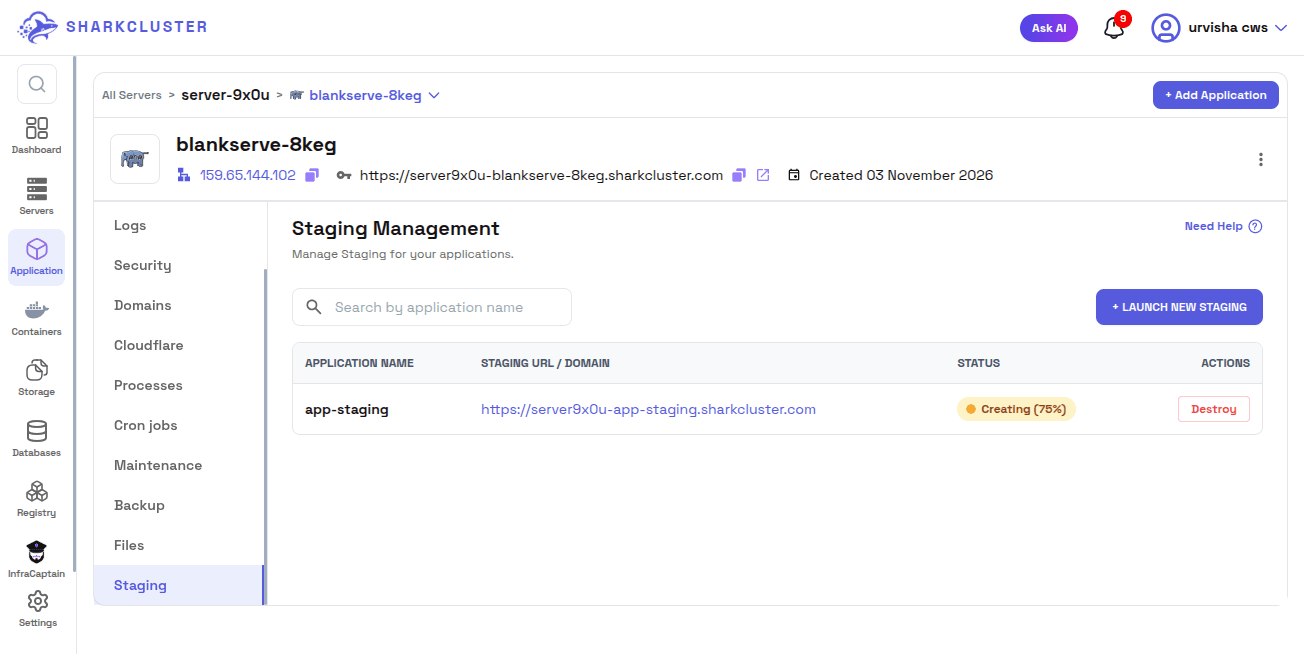
Staging creation is a multi-step background task. The table auto-refreshes every 2 seconds during creation, and the task status is polled every 3 seconds.
Progress badge in the table
While creation is in progress the Status column shows an amber animated badge labelled Creating (N%). The percentage updates as each step completes. Clicking the badge opens the Progress Modal for a more detailed view.
Progress modal
The progress modal shows a spinning animation, a progress bar filled to the current percentage, the percentage number, and the most recent status message from the server (e.g. "Copying application files...", "Setting up database..."). Click Close to dismiss the modal — creation continues in the background and the table badge continues updating. You do not need to keep the modal open.
Completion and failure
| Outcome | What happens |
|---|---|
| Success | A green toast appears: Staging application setup complete! The Status badge changes to the green Active pill. The staging URL becomes a live clickable link. |
| Failure | A red toast appears with the error from the last log entry. The Status badge updates to reflect the failed state. You can attempt to launch a new staging environment after investigating the cause of the failure. |
7. Destroying a staging application
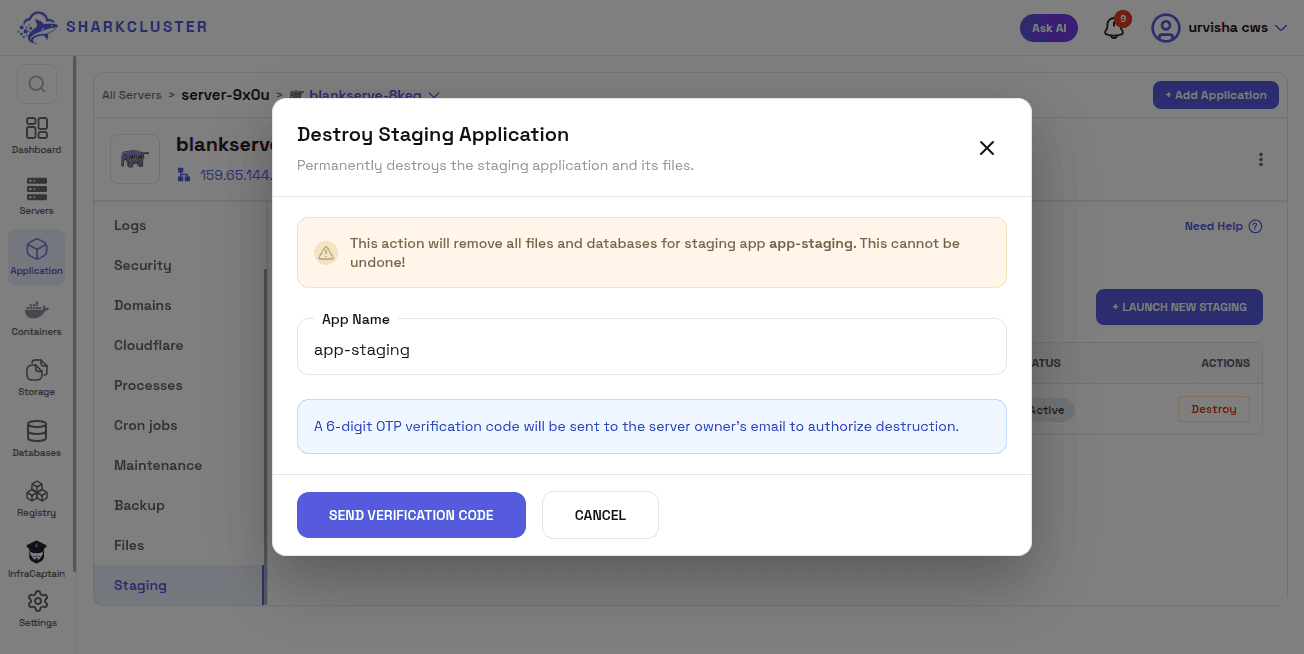
Click the Destroy button on any staging application row to open the Destroy Staging Application modal. Destroying a staging environment permanently removes all its files and its database. This action cannot be undone. It is protected by an OTP verification step to prevent accidental deletion.
Destruction flow (step by step)
- The modal opens showing the staging app name (read-only) and a warning: all files and the database will be permanently removed.
- An info panel explains that a 6-digit OTP will be sent to the server owner's email to authorise destruction.
- Click Send Verification Code. The button shows "Sending OTP..." while the request is in flight. On success a toast confirms the code was sent and the email address it was sent to is shown beneath the code input.
- Enter the 6-digit code you received in the Verification Code field.
- Click Verify & Destroy (red button). The button shows "Destroying..." while the task runs.
- The system polls the destruction task every 3 seconds. When complete, a success toast fires, the modal closes, and the staging application is removed from the table.
- If verification fails, a red toast shows the error and you can try again without re-sending the code.
The Cancel button and the X close button are both disabled while the OTP send or destruction is in progress to prevent the modal from being closed mid-operation.
8. Accessing your staging site
Once staging is Active, click the URL in the Staging URL / Domain column to open the staging site in a new tab. The staging application is a fully independent application and can be managed from the Applications list in the sidebar — it has its own settings, domains, and deployment options just like any other application on the server.
To make code changes on staging, deploy your updated code to the staging application using your deployment method (Git, SFTP, or File Manager). Staging uses the same web server and PHP/Node/Python version as the production application, so what works on staging will work on production.
9. Practical tips
- Always test on staging before deploying to production. Deploy your changes to the staging application first, verify everything works correctly, then deploy the same changes to production.
- Use a descriptive staging name if you have multiple environments. Instead of the default myapp-staging, names like myapp-v2-test or myapp-feature-x make it clear which staging environment is for what purpose.
- The staging database is independent. Any database changes you make on staging (migrations, seed data, schema changes) do not affect production. You need to apply the same migrations to production separately when you are ready.
- Creation may take a few minutes. The system copies all application files and sets up a new database. For large applications this can take several minutes. The progress badge and modal keep you informed without requiring you to stay on the page.
- Destroy staging when you no longer need it. Staging applications consume disk space and database resources on the server. Delete environments you are no longer using to keep the server clean.
- The OTP for destruction is sent to the server owner's email. If you are a team member rather than the owner, coordinate with the owner to get the OTP when you need to destroy a staging environment.
- Staging inherits production's current state at creation time. The files and database are a snapshot of production at the moment you clicked Create. Changes made to production after that point are not reflected in staging automatically — you would need to create a fresh staging environment.
10. Common problems
| Problem | Likely cause and fix |
|---|---|
| Staging creation fails immediately | Insufficient disk space on the server, or the application directory is not accessible — check server disk usage from the Server Overview tab |
| Progress badge stuck at the same percentage for a long time | The background task may have stalled — wait a few minutes; if it does not advance, the error will surface as a failure toast and you can retry |
| Staging URL shows as N/A | The virtual host configuration for the staging app has not been created yet — wait for creation to complete; if it stays N/A after Active status appears, check the staging app's Domain tab |
| Staging site returns 502 or 503 | The application process on the staging environment is not running — navigate to the staging application from the Applications list and check its Processes tab |
| Send Verification Code button does nothing | The staging app may have been removed already, or there is a network error — close the modal and reload the page |
| OTP not received | Check your spam/junk folder. The code is sent to the server owner's registered email address. If it still does not arrive, use Resend (close the modal and reopen Destroy to trigger a new send) |
| Destroy fails after entering the correct OTP | The destruction task failed on the server — a red toast shows the last log entry. Check server disk space and try again; if the staging app files are already gone, the entry may disappear from the table on the next refresh |
| Cannot find the staging application in the list | If the staging app was created before parent_app_id tracking was introduced, it is matched by name prefix. Ensure the staging app name starts with the production app name followed by a dash. |
11. Relationship to other tabs
| Where | Scope |
|---|---|
| Staging (this tab) | Launch, monitor, and destroy staging environments for this application |
| Applications list (sidebar) | The staging application appears as its own entry — click it to manage its settings, domains, cronjobs, and deployments independently |
| Processes tab (on staging app) | If the staging site returns a 502, go to the staging application's Processes tab to restart its backend process |
| Domains tab (on staging app) | Add a custom subdomain to the staging environment (e.g. staging.yourdomain.com) or manage its auto-generated URL |
| Maintenance Mode tab (on staging app) | Put the staging environment into maintenance mode to hide it from unintended visitors while testing |
| File Manager / Git (on staging app) | Deploy updated code to the staging application before verifying and then deploying the same to production |
Staging is your safety net before every deployment. Create a staging environment, test your changes thoroughly, then deploy with confidence. Destroy staging once it has served its purpose to keep the server tidy and resources free.
Frequently asked questions
Do database changes on staging affect production?
No. The staging database is independent, so migrations and data changes made on staging must be applied to production separately when you are ready.
How do I delete a staging environment?
Click Destroy on the staging application and enter the 6-digit code emailed to the server owner. Destroying it permanently removes its files and database and cannot be undone.
How do I deploy code to a staging application?
Deploy to the staging application with your usual method: Git, SFTP or the File Manager. It uses the same web server and PHP, Node or Python version as production, so what works on staging should work in production.
What does a SharkCluster staging application include?
Launching staging duplicates the application's files and creates a new isolated database. The staging copy runs as an independent application with its own URL, by default named after the application with a -staging suffix.
Related guides
- ApplicationsBackup & restoreCreating application-level backups and restoring from one, including the safety copy taken before a restore overwrites anything.
- ApplicationsCreating an applicationDeploy an application onto an existing server with its database created and wired in, and what each choice on the create form commits you to.
- ApplicationsAccessSFTP and SSH credentials for a single application, how they are scoped to its directory, and how to rotate them.
- ApplicationsAnalyticsTraffic, PHP performance, database activity and disk usage for one application, in one place.
Something here not matching what you see in the panel?