Maintenance Mode shows visitors a holding page while you deploy changes or carry out updates, instead of a broken or half-updated site. You choose a template, write the message, add the IP addresses that can still see the live site, and switch it on.
Getting here: Servers → select a server → Applications → select an application → Maintenance. The same page also has Purge Cache (see section 9).
1. How It Works
When maintenance mode is on, every address on the application's domains (/*) shows the maintenance page. Visitors from whitelisted IP addresses bypass it and see the live application.
Nothing changes for visitors until you click Save & Apply Maintenance Mode. Changing settings without saving has no effect on the live site.
A badge at the top shows the saved state: Maintenance ON (amber) or Maintenance OFF (grey). It changes only after a successful save.
2. Templates
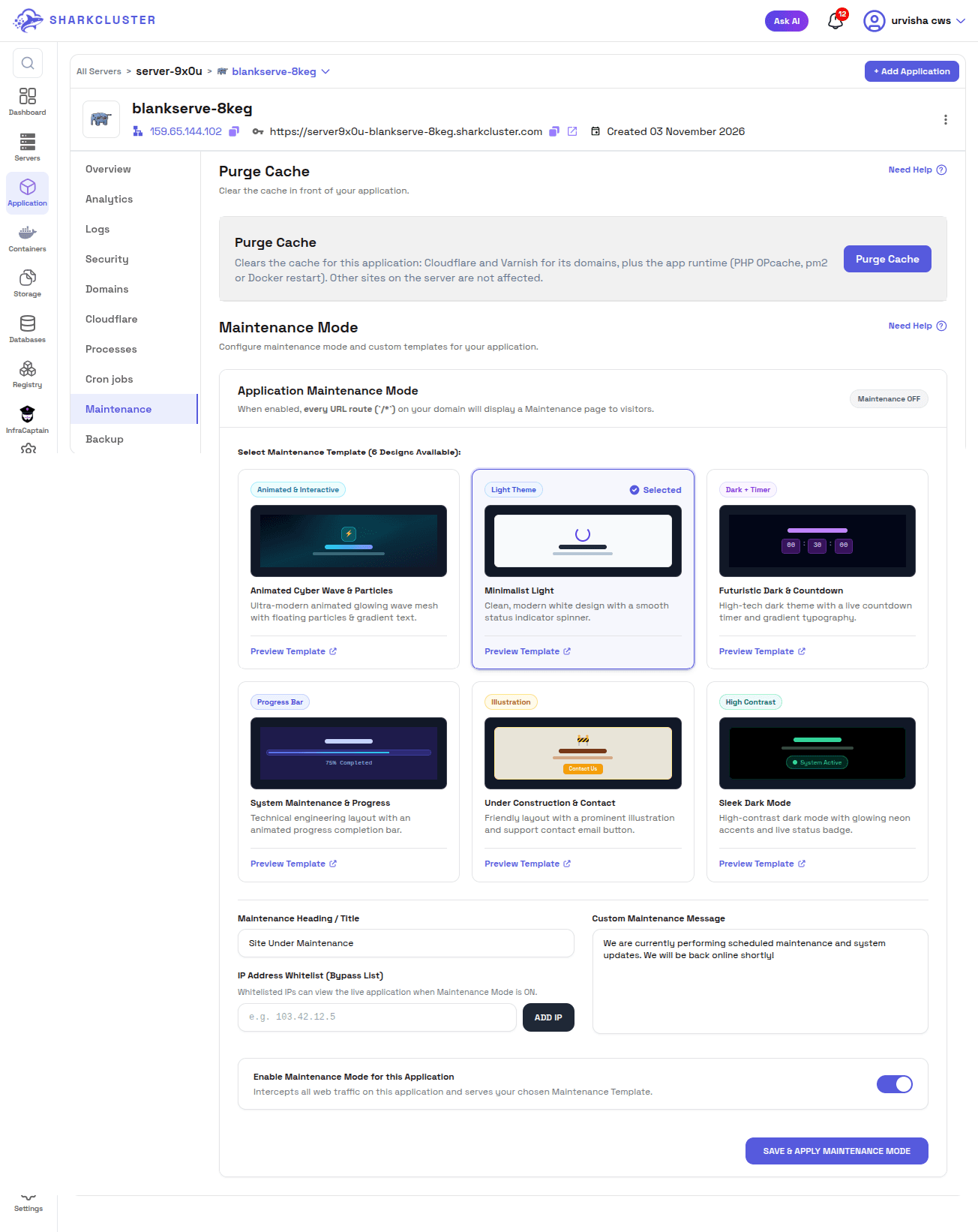
Click a template card to select it. Preview Template on each card opens the page in a new tab with your current title and message, so you can check it before going live. Previewing does not save anything.
| Template | Style |
|---|---|
| Animated Cyber Wave & Particles | Dark, animated wave and particle background. Suits tech products. |
| Minimalist Light | Clean white card with a status spinner. Suits any site. |
| Futuristic Dark & Countdown | Dark theme showing an estimated duration. Use when you know how long the work will take. |
| System Maintenance & Progress | Light layout with a progress bar showing how far along the work is. |
| Under Construction & Contact | Friendly layout with an illustration and a contact button. |
| Sleek Dark Mode | High-contrast black design with neon accents and a status badge. |
Template Options
| Template | Extra option |
|---|---|
| Futuristic Dark & Countdown | Estimated Time / Duration, such as 30 Mins, 2 Hours or Until 6 PM. It is shown as text on the page; it is not a live countdown timer. |
| System Maintenance & Progress | Progress Percentage (0–100), the filled width of the progress bar. Save again with a new value as the work progresses. |
3. Page Content
| Field | Default | Use it for |
|---|---|---|
| Maintenance Heading / Title | Site Under Maintenance | The large heading. Keep it short. |
| Custom Maintenance Message | We are currently performing scheduled maintenance and system updates. We will be back online shortly! | The text under the heading: why the site is down, when it will be back, and where to get help. |
4. IP Address Whitelist
Whitelisted IP addresses see the live application even while maintenance mode is on, so you and your team can check your changes before letting visitors back in.
- 1Enter an IP address, such as
203.0.113.5. - 2Click Add IP or press Enter. It appears as a tag below the field. Duplicates are rejected.
- 3Click × on a tag to remove an address.
Whitelist changes, like everything else on this page, only take effect after Save & Apply Maintenance Mode. If your team shares an office or VPN IP address, add that one address.
5. Turning It On and Off
Enable Maintenance Mode for this Application switches maintenance mode on or off. Like the other settings, it only takes effect when you save.
- Prepare the template, message and whitelist with the switch off, then turn it on and save when you are ready.
- While maintenance mode is on, you can change the message or progress and save again; visitors see the update when they reload.
6. Saving
Click Save & Apply Maintenance Mode. It shows Saving Settings... while saving, then a message confirms the result. All settings are saved together. If you leave the page without saving, your changes are lost.
7. Choosing a Template
| Situation | Template |
|---|---|
| Planned downtime with no set end time | Minimalist Light or Sleek Dark Mode |
| You know roughly how long it will take | Futuristic Dark & Countdown |
| You want to show progress | System Maintenance & Progress |
| Customer-facing site where a friendly tone matters | Under Construction & Contact |
| Tech product or developer tool | Animated Cyber Wave & Particles or Sleek Dark Mode |
8. A Safe Deployment Routine
- 1Add your own IP address to the whitelist.
- 2Preview the template with your real title and message.
- 3Turn maintenance mode on and save.
- 4Deploy your changes. Restart the application's processes from Processes if needed.
- 5Check the live site from your whitelisted IP.
- 6Click Purge Cache so visitors get the new version.
- 7Turn maintenance mode off and save.
Maintenance mode only affects web traffic. Cron jobs and background processes keep running, so pause any that could interfere with your changes.
9. Purge Cache
Purge Cache clears the caches in front of this application in one click, so visitors see your latest changes:
| Layer | What is cleared |
|---|---|
| Cloudflare | Cloudflare's cache for the application's domains, when Cloudflare is used. |
| Varnish | Varnish's cache for the application's domains, when Varnish is set up. |
| App runtime | PHP OPcache, or a restart of the application's PM2 process or Docker container. |
The result for each layer is shown after purging. Layers that do not apply to the application are skipped. Other applications on the server are not affected.
10. Practical Tips
- Whitelist your IP before turning it on, so you can check the site yourself.
- Preview before saving to see exactly what visitors will see.
- Turn it off as soon as you are done. Visitors cannot use the application while it is on.
- Maintenance mode is per application. Other applications on the server keep running normally, and every domain of this application shows the maintenance page.
- Uptime monitoring still sees the site as online during maintenance, because the server is still responding with the maintenance page.
11. Common Problems
| Problem | What to check |
|---|---|
| The maintenance page is not showing | Make sure the save succeeded and the badge shows Maintenance ON. Your browser may be showing a cached page; try a private window. |
| You still see the live site | Your IP is on the whitelist, which is expected. Check from another network, such as your phone's mobile data. |
| A whitelisted IP still sees the maintenance page | The whitelist was not saved, or the IP address has changed. Check your current IP and save again. |
| Preview opens a blank tab | Your browser blocked the pop-up. Allow pop-ups for the dashboard and try again. |
| The countdown does not count down | Expected: the Estimated Time is shown as text, not a live timer. |
| The contact link goes to [email protected] | The template uses a placeholder address. Put your real contact details in the message. |
| Visitors see old content after maintenance | Click Purge Cache. |
Frequently asked questions
Can I still see the live site while maintenance mode is on?
Yes, from a whitelisted IP address. Whitelisted visitors bypass the maintenance page, so add your own IP before turning it on.
Why isn't the maintenance page showing?
Check the save succeeded and the badge shows Maintenance ON, then try a private window in case your browser shows a cached page. If your IP is whitelisted, you will still see the live site.
Is the countdown on the maintenance page a live timer?
No. The Futuristic Dark & Countdown template shows the estimated time you enter, such as 30 Mins or Until 6 PM, as text.
How do I put my application into maintenance mode?
Open the application's Maintenance page, choose a template and message, add your IP address to the whitelist, turn on Enable Maintenance Mode for this Application and click Save & Apply Maintenance Mode.
Related guides
- ApplicationsCreating an applicationDeploy an application onto an existing server with its database created and wired in, and what each choice on the create form commits you to.
- ApplicationsAccessSFTP and SSH credentials for a single application, how they are scoped to its directory, and how to rotate them.
- ApplicationsAnalyticsTraffic, PHP performance, database activity and disk usage for one application, in one place.
- ApplicationsLogsReading application, web server and service logs from the panel without opening an SSH session.
Something here not matching what you see in the panel?