The application Security page shows what is protecting a single application: suspicious requests, web application firewall (WAF) events and malware scan results, all limited to this application. It refreshes every 60 seconds, so you see threats as they happen.
Getting here: Servers → select a server → Applications → select an application → Security.
Most of this page relies on the server's security protection. If it is not on yet, turn it on from the server's Security → Overview → Turn on protection first.
1. The Three Tabs
| Tab | What it shows |
|---|---|
| Incidents | Problem requests from this application's access log: HTTP errors, bots and suspicious requests. |
| WAF Events | Requests the web application firewall (ModSecurity) detected or blocked. |
| Malware Scan | ClamAV scan results for this application's files. |
A badge on a tab shows how many items need attention, such as error incidents or infected files.
2. Web Firewall Mode
When the web firewall is active, a banner on the Incidents and WAF Events tabs shows its mode:
| Mode | What happens |
|---|---|
| Detection (amber) | Attacks are logged under WAF Events but not stopped. Use this first to check for false positives. |
| Blocking (green) | Requests matching an attack rule are stopped before they reach the application. |
Click Switch to blocking or Switch back to detection and confirm to change the mode. The recommended order is: review Incidents and WAF Events for legitimate traffic being flagged, then switch to blocking. If a legitimate request is blocked, switch back to detection while you investigate.
3. Incidents Tab
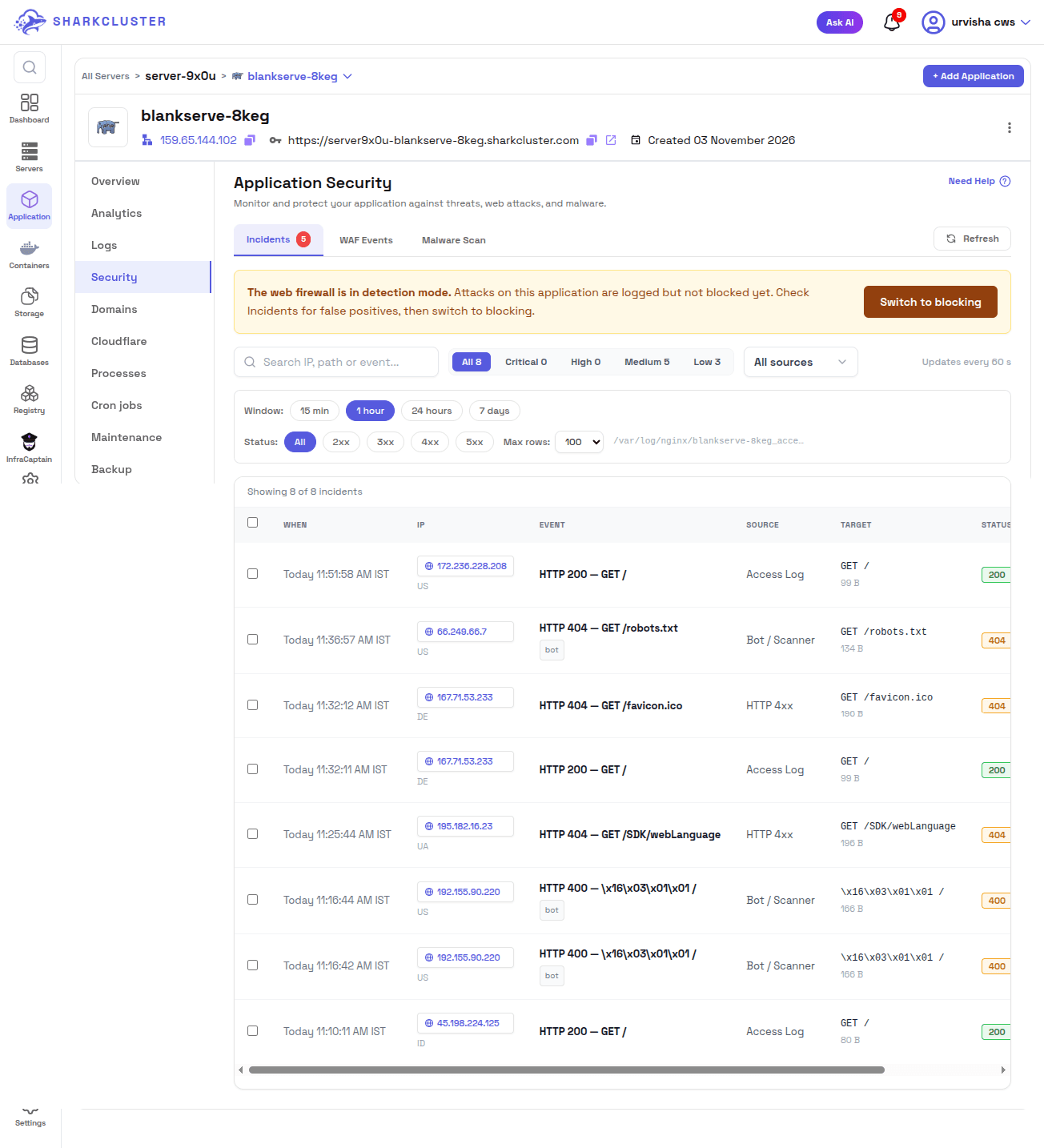
The Incidents tab reads this application's access log and lists requests that indicate problems: HTTP errors, bot activity and suspicious patterns.
Filters
- Search by IP address, URL path, method, status code, event or user agent.
- Severity buttons show one level at a time; each shows a count for all fetched rows.
- Source narrows to one origin, such as Access Log, HTTP 4xx, Server Error or Bot / Scanner.
- Window: 15 min, 1 hour, 24 hours or 7 days. Changing it fetches the log again.
- Status: All, 2xx, 3xx, 4xx or 5xx, applied to the rows already loaded.
- Max rows: 50, 100, 250 or 500 rows fetched from the server. Raise it if events seem to be missing.
Severity
| Severity | Assigned when |
|---|---|
| Critical | The response was a 5xx server error. |
| High | The response was 401, 403 or 429. |
| Medium | Any other 4xx response. |
| Low | A 2xx or 3xx response with other suspicious signals. |
Table Columns
| Column | What it contains |
|---|---|
| When | When the request was logged. |
| IP | The source IP with a reputation badge (green clean, amber suspicious, red malicious) and its country where known. |
| Event | A description of the request; a bot label shows when it was automated traffic. |
| Source | Where the entry came from. |
| Target | The HTTP method and path, with the response size. |
| Status | The HTTP status code. |
| Severity | Critical, High, Medium or Low. |
Row Actions
Click a row to open its details. The row menu offers:
- View details: opens the detail panel with the full request, user agent, IP reputation and country.
- Block IP / Unblock: blocks the IP on the server, or removes the block (see section 7).
- Mark as reviewed: dims the row so you can track what you have checked. This only lasts until you reload the page.
4. WAF Events Tab
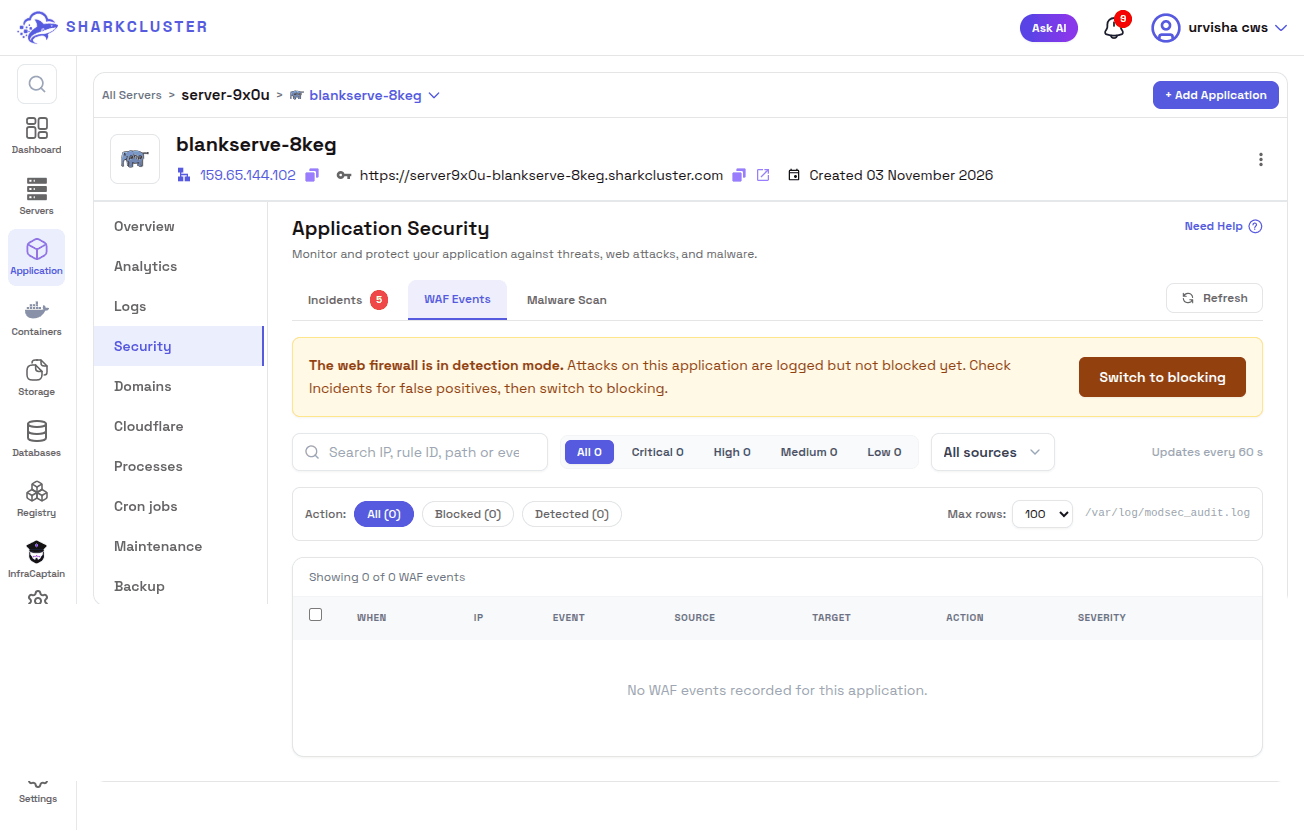
Each WAF event means the firewall matched a request against an attack rule and either detected or blocked it.
- Action: All, Blocked or Detected.
- Max rows: 50, 100, 250 or 500. The tab always shows the most recent events; it has no time window.
| Column | What it contains |
|---|---|
| When | When the rule matched. |
| IP | The source IP with its reputation badge. |
| Event | The rule's message, with the matching rule IDs (for example #941100) underneath. |
| Source | Always ModSecurity. |
| Target | The HTTP method, path and domain. |
| Action | Blocked or Detected. |
| Severity | High for blocked or error-level events, otherwise Medium. |
Rule IDs come from the OWASP Core Rule Set. Look them up to see what pattern matched. If legitimate traffic is being flagged, note the rule ID and contact support to add an exception.
5. Malware Scan Tab
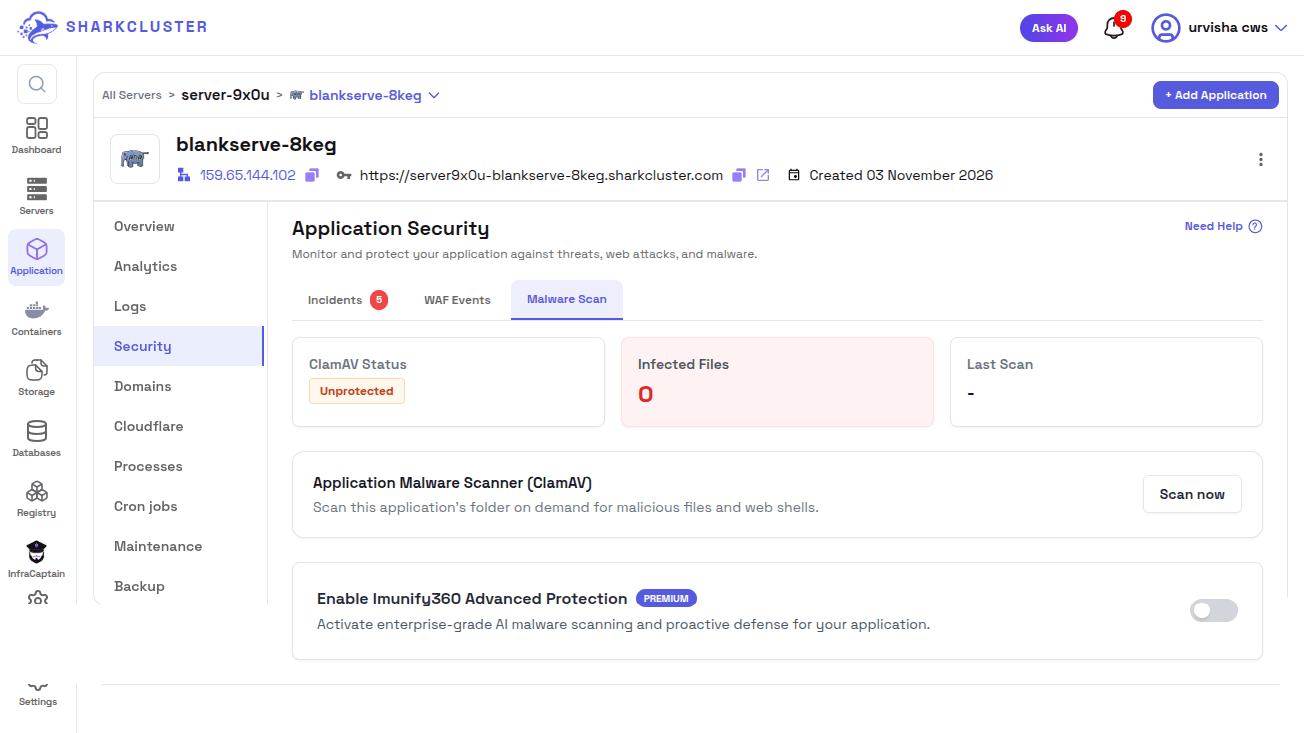
Scans this application's files with ClamAV for web shells, backdoors and known malware.
| Card | What it shows |
|---|---|
| ClamAV Status | Protected (last scan clean), Infected (infected files found) or Unprotected (not scanned yet, or ClamAV not installed). |
| Infected Files | The number of files flagged in the last scan. |
| Last Scan | When the last scan finished. |
Running a Scan
- 1Click Scan now. It shows Scanning... while it runs.
- 2When it finishes, a message says whether the files are clean or infected, and the cards update.
- 3If files were flagged, click View infected files to see each file path and the signature that matched.
Remove or replace infected files using the application's Files page or SSH, then scan again. If a nightly scan is set up for the server, the panel shows its time in IST; Scan now always runs immediately.
Imunify360
Enable Imunify360 Advanced Protection (Premium) installs Imunify360, a commercial malware and intrusion protection suite, on the application's server.
6. IP Reputation
Every IP in the Incidents and WAF Events tables is checked against an IP reputation service, and the result is shown as a badge:
| Badge | Meaning |
|---|---|
| Green | No known abuse reports. |
| Amber | Some abuse reports; worth watching. |
| Red | Widely reported for malicious activity; a strong candidate for blocking. |
If an IP has no badge, the lookup has not finished yet or the address is private.
7. Blocking and Unblocking IPs
Blocking is a server-level action: a blocked IP cannot reach any application on the server, and the block appears in the server's Security page too.
- Block: open a row's menu, or its detail panel, and click Block IP.
- Unblock: for an IP that is already blocked, the same option reads Unblock.
Treat a red reputation badge as a reason to look closer, not as proof. A known-bad IP hitting a missing page is low risk; the same IP posting to your login page is not.
8. Refreshing
Incidents and WAF Events refresh automatically every 60 seconds. Click Refresh to load the latest entries immediately; it shows Refreshing... while loading. The Malware Scan tab shows the last scan and updates when you run a new one.
9. Practical Tips
- Start in detection mode and review WAF Events before switching to blocking.
- Use the time window to focus. 15 minutes right after reproducing a problem; 7 days for the full picture.
- Look at Critical and High first. These are most likely to be real attacks or broken pages.
- Check WAF Events when a request seems to be missing. A request the firewall blocked never reaches the application.
- Scan after deploying new code to catch anything harmful that slipped in.
10. Common Problems
| Problem | What to check |
|---|---|
| No incidents showing | There were no problem requests in the time window, or the access log is empty. Try a longer window. |
| No WAF events or no firewall banner | Security protection is not turned on for the server, or no rules have matched yet. Turn it on from the server's Security page. |
| A legitimate request was blocked | Switch the firewall back to detection, note the rule ID under WAF Events, and contact support to add an exception. |
| The table is empty after filtering | The severity, source, status and search filters together match nothing. Relax one filter at a time. |
| ClamAV Status is Unprotected | ClamAV is not installed or this application has not been scanned. Turn on server protection, then click Scan now. |
| Scan now fails | ClamAV may not be installed or running. Check it on the server's Packages page. |
| Reputation badges are missing | The lookup is still in progress. Wait a few seconds. |
11. Related Pages
| Where | What it covers |
|---|---|
| Application Security (this page) | Incidents, WAF events and malware for this application only. |
| Server Security | Turning protection on, the server-wide firewall mode, blocked IPs, malware across all applications, and UFW firewall rules. |
| Application Logs | The raw error, access and systemd logs, for more context on an incident. |
| Application Processes | Application process health; a crashed process shows here, not in Incidents. |
| Downtime alerts on the Overview page | Tells you the application is unreachable; this page can help explain why. |
Use the server Security page to act across the whole server, and this page to focus on one application.
Frequently asked questions
Should I run the web firewall in detection or blocking mode?
Start in detection mode, where attacks are logged under WAF Events but not stopped, and review the events for false positives before switching to blocking.
How do I scan an application for malware?
Open the application's Security page, go to the Malware Scan tab and click Scan now. ClamAV checks the files for web shells, backdoors and known malware, and View infected files lists any matches.
Does blocking an IP on one application affect other applications?
Yes. Blocking is a server-level action: a blocked IP cannot reach any application on the server, and the block also appears on the server's Security page.
What does the application Security page show?
It shows suspicious requests from the access log, web application firewall (ModSecurity) events and ClamAV malware scan results for this one application, refreshed every 60 seconds.
Related guides
- FirewallFirewallClosed-by-default UFW rules managed from the panel — adding rules, Sync Rules, country-level blocking, and reading the audit log.
- ApplicationsCreating an applicationDeploy an application onto an existing server with its database created and wired in, and what each choice on the create form commits you to.
- ApplicationsAccessSFTP and SSH credentials for a single application, how they are scoped to its directory, and how to rotate them.
- ApplicationsAnalyticsTraffic, PHP performance, database activity and disk usage for one application, in one place.
Something here not matching what you see in the panel?