The Backup page backs up and restores a single application. You can take a backup now, set an automatic schedule, restore the application from any backup, and delete old ones, all without SSH. Every restore takes a safety backup of the current state first, so you always have a way back.
Getting here: Servers → select a server → Applications → select an application → Backup.
A backup is a zip of the application's root folder and a dump of its database.
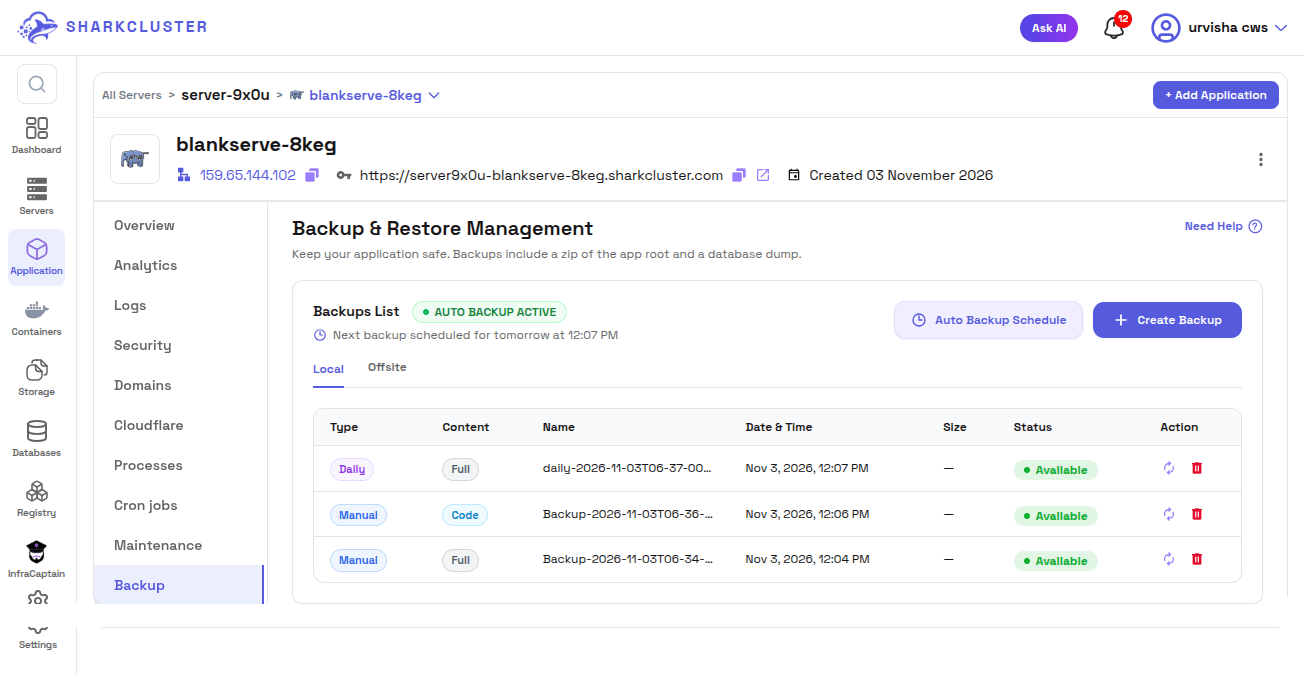
1. The Backups List
Status
Next to Backups List, a badge shows whether automatic backups are on. When they are, a line underneath shows when the next backup will run. While a backup is being created, Backup in progress… appears and the list updates every 5 seconds on its own.
Local and Offsite
Backups are split into Local and Offsite tabs:
| Destination | Where it is stored | Cost |
|---|---|---|
| Local | The server's own disk. | No extra charge, but uses server disk space. |
| Offsite | Remote object storage. | Billed per GB on your monthly invoice; the price is shown when you choose Offsite. |
Local backups are lost if the server is lost. Offsite backups survive it.
Columns
| Column | What it shows |
|---|---|
| Type | How the backup was made: Manual, Daily, Weekly, 14 Days, Monthly, Scheduled, or Pre-Restore (the safety backup taken before a restore). |
| Content | Full (files and database), Code (files only) or DB (database only). |
| Name | The backup's file name. |
| Date & Time | When it was created. |
| Size | The archive size. |
| Status | Available (ready to restore), Creating…, Failed or Expired. |
| Action | Restore (available backups only) and Delete. |
2. Creating a Backup
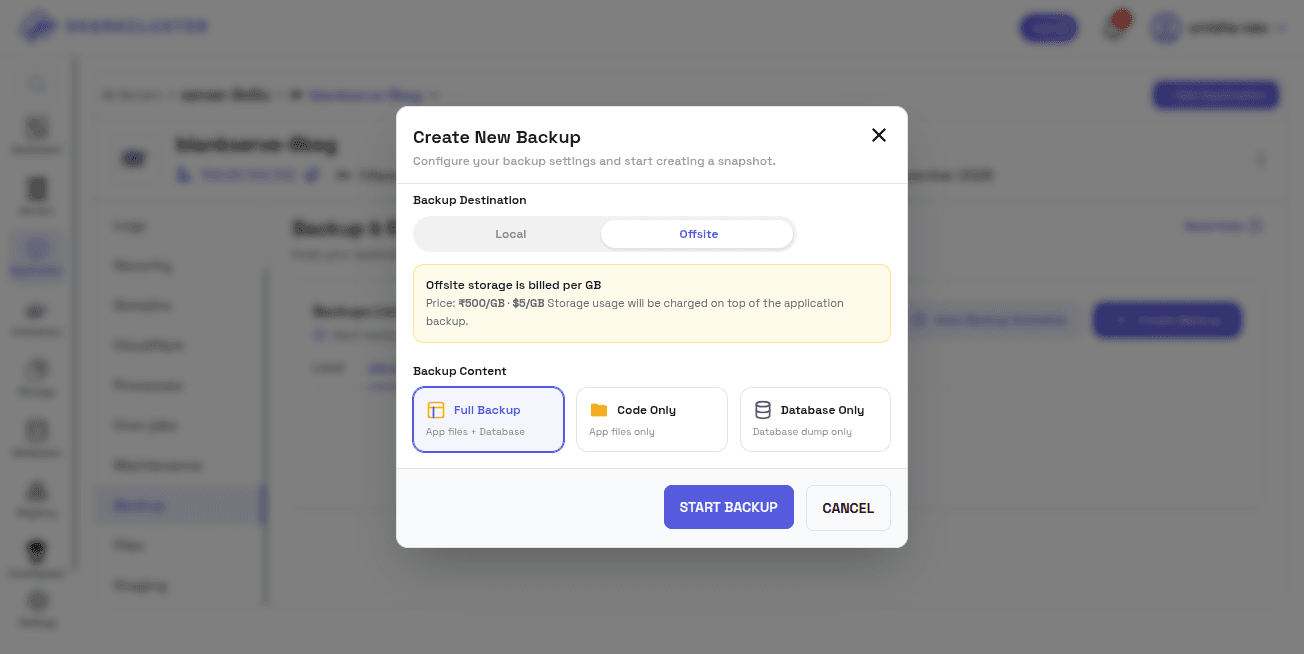
- 1Click + Create Backup.
- 2Choose the Backup Destination: Local or Offsite. Your choice becomes the default for later backups and the automatic schedule.
- 3Choose the Backup Content (below).
- 4Click Start Backup.
| Content | What is backed up | Use it |
|---|---|---|
| Full Backup | Application files and database | Before any major change. This is the default. |
| Code Only | Application files only | When only code is changing. |
| Database Only | Database dump only | Before a database migration or data import. |
A message confirms the backup has started, and it appears in the list as Creating… until it is Available. You can leave the page; the backup carries on on the server.
3. Automatic Backups
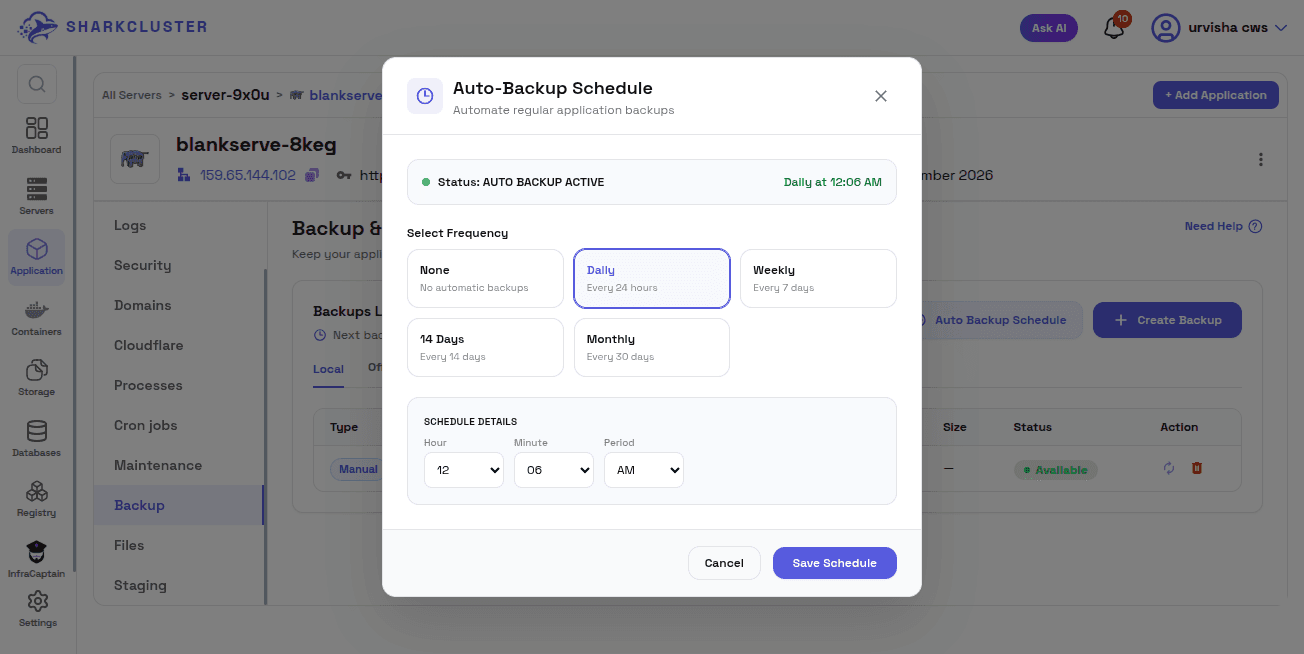
- 1Click Auto Backup Schedule.
- 2Choose a frequency: None (off), Daily, Weekly, 14 Days or Monthly.
- 3Set the Hour, Minute and AM/PM, and for weekly backups the Day of Week. The default time is 2:00 AM.
- 4Click Save Schedule, then check the Confirm Schedule summary of frequency, time, day and time zone, and confirm.
Times are shown in your browser's time zone, which the confirmation names. Once saved, the badge and next-backup line in the Backups List update.
4. Restoring From a Backup
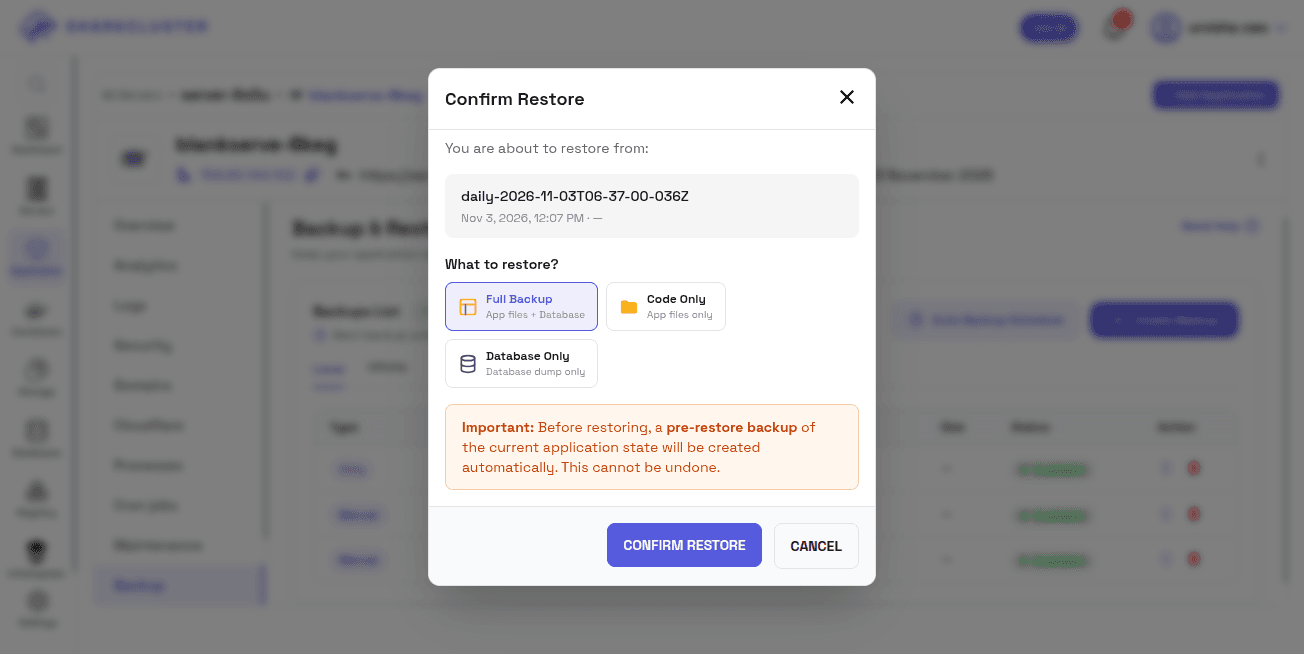
- 1Click Restore on an Available backup.
- 2Check the backup name, date and size in Confirm Restore.
- 3For a Full backup, choose What to restore? (below). Code-only and database-only backups restore just what they contain.
- 4Click Confirm Restore.
| Option | What is replaced |
|---|---|
| Full Backup | The application's files and database. |
| Code Only | The files only; the live database is left alone. |
| Database Only | The database only; the live files are left alone. |
A message confirms the restore has started; the pre-restore backup is created first, then the restore runs. Restoring replaces data, so anything changed since the backup was taken is overwritten in the parts you restore.
5. Deleting a Backup
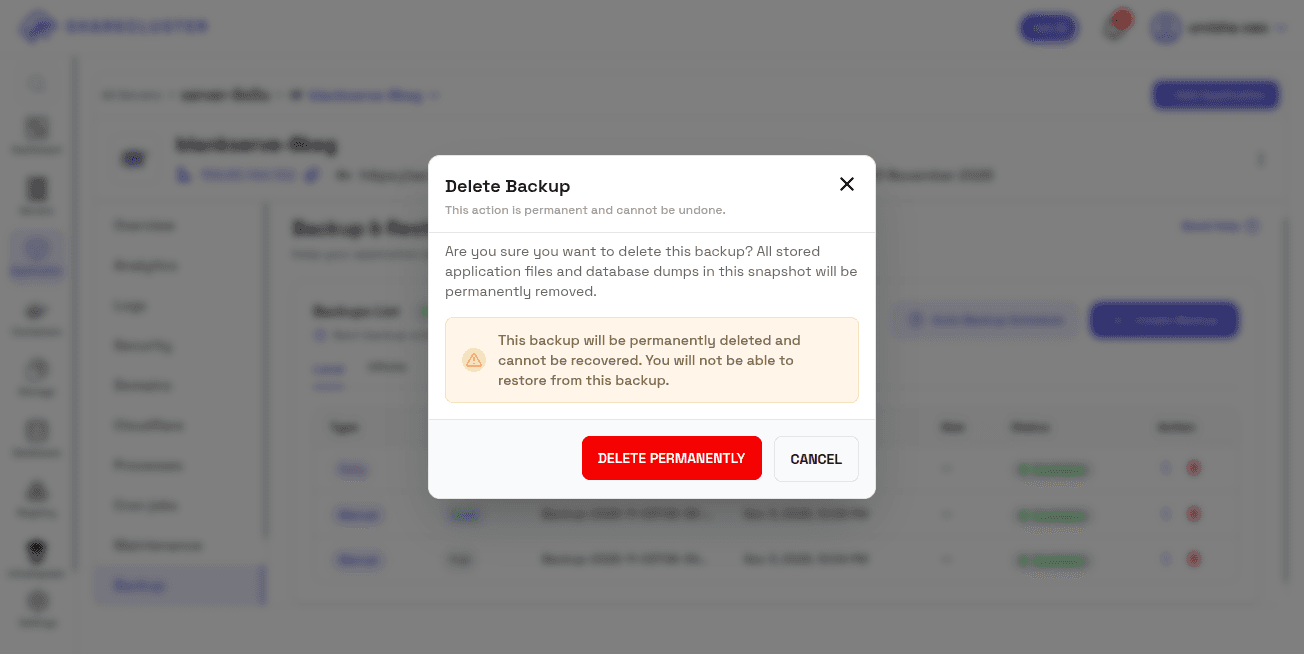
Click Delete on a backup and confirm with Delete Permanently. The backup's files and database dump are removed and cannot be recovered.
6. Practical Tips
- Take a Full backup before every deployment for an easy rollback point.
- Use Database Only before migrations. It is quicker than a full backup and enough to undo a failed migration.
- Keep important backups Offsite. Local backups disappear with the server.
- Keep the latest Pre-Restore backup until you are sure the restore worked.
- Delete old local backups to free disk space, especially large full backups.
- Test a restore once, so you know it works and how long it takes.
7. Common Problems
| Problem | What to check |
|---|---|
| A backup stays in Creating… for a long time | Large applications and databases take longer. The list updates on its own when it finishes. |
| A backup shows Failed | The server may be out of disk space. Check disk usage on the server's Monitoring page, free some space, and try again. |
| There is no Restore button on a backup | Only Available backups can be restored; it may still be creating, or have failed or expired. |
| A restore did not start | The pre-restore backup may have failed, usually because of low disk space. Look for a failed Pre-Restore entry. |
| Automatic backups are not running | Open Auto Backup Schedule, check the frequency is not None, and save it again. |
| An offsite backup fails | Contact support. Check the Local tab in the meantime. |
| Size shows a dash | The size has not been calculated yet, or the backup failed. Refresh the page. |
8. Related Pages
| Where | What it covers |
|---|---|
| Application Backup (this page) | Backups of this application's files and database. |
| Server Backups | Whole-server snapshots, images and portable backups, covering every application. |
| Files | Checking or fixing individual files before or after a restore. |
| Processes | Restarting the application's processes after a restore if needed. |
Frequently asked questions
What is the difference between local and offsite application backups?
Local backups are stored on the server's own disk at no extra charge but are lost if the server is lost. Offsite backups go to remote object storage, survive losing the server, and are billed per GB on your monthly invoice.
Which backup should I take before a database migration?
Take a Database Only backup. It is quicker than a full backup and enough to undo a failed migration.
What happens to my current data when I restore a backup?
Every restore first takes a Pre-Restore safety backup of the current state, so the restore can be undone. For a Full backup you choose whether to restore files, the database or both.
How do I back up a single application?
Open the application's Backup page and click + Create Backup. Choose Local or Offsite as the destination and Full, Code Only or Database Only as the content.
Related guides
- BackupsBackupsThe seven backup types SharkCluster offers, which failure each one actually protects against, and how scheduling, retention and restore work.
- ApplicationsCreating an applicationDeploy an application onto an existing server with its database created and wired in, and what each choice on the create form commits you to.
- ApplicationsAccessSFTP and SSH credentials for a single application, how they are scoped to its directory, and how to rotate them.
- ApplicationsAnalyticsTraffic, PHP performance, database activity and disk usage for one application, in one place.
Something here not matching what you see in the panel?